<?xml version="1.0" encoding="utf-8"?><feed xmlns="http://www.w3.org/2005/Atom" xml:lang="en"><generator uri="https://jekyllrb.com/" version="4.4.1">Jekyll</generator><link href="https://ep2aes.asis.sh/feed.xml" rel="self" type="application/atom+xml" /><link href="https://ep2aes.asis.sh/" rel="alternate" type="text/html" hreflang="en" /><updated>2026-09-25T20:44:47+03:30</updated><id>https://ep2aes.asis.sh/feed.xml</id><title type="html">EP2AES</title><subtitle>Field notes on QRP HF, the FX-4CR, macOS, digital modes, and small radio tools by amateur radio operator EP2AES.</subtitle><author><name>EP2AES</name><email>EP2AES@asis.sh</email></author><entry xml:lang="en"><title type="html">Operating the Lab599 Discovery TX-500 on macOS: A Complete FT8 Blueprint</title><link href="https://ep2aes.asis.sh/log/2026/09/25/operating-lab599-tx-500-on-macos-ft8/" rel="alternate" type="text/html" title="Operating the Lab599 Discovery TX-500 on macOS: A Complete FT8 Blueprint" /><published>2026-09-25T14:00:00+03:30</published><updated>2026-09-25T14:00:00+03:30</updated><id>https://ep2aes.asis.sh/log/2026/09/25/operating-lab599-tx-500-on-macos-ft8</id><content type="html" xml:base="https://ep2aes.asis.sh/log/2026/09/25/operating-lab599-tx-500-on-macos-ft8/"><![CDATA[<p>After seven long weeks of international transit, customs holding, and store cancellations, my <strong>Lab599 Discovery TX-500</strong> finally landed on my operating desk.</p>

<p>Shipping from Russia to Iran during turbulent geopolitical times turned out to be an exercise in patience—four accessories were cancelled after placing the order due to sudden stock depletion. But once unboxed and held in hand, the engineering reality of this transceiver makes the entire detour worthwhile.</p>

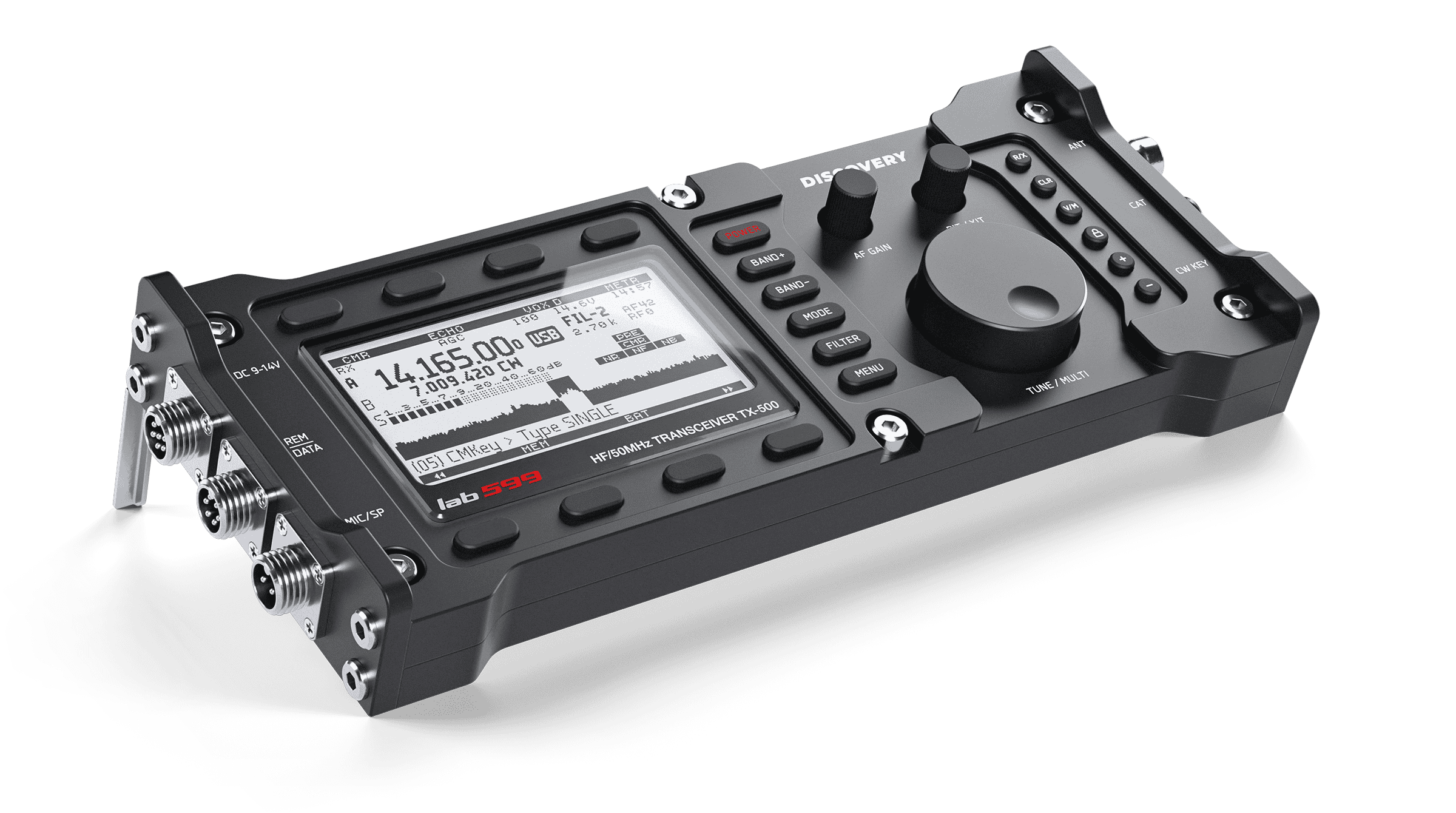
<p>Carved from a solid monoblock of aircraft-grade anodized aluminum, sealed to IP65 weather-resistance standards, and equipped with a high-contrast transflective LCD showing a real-time 48 kHz panadapter, the TX-500 is arguably the most rugged, tactile, and aesthetically purposeful portable SDR ever created.</p>

<figure>
  <img src="/assets/images/tx500/tx500_radio_discovery.png" alt="Lab599 Discovery TX-500 ultra-compact QRP transceiver" width="2400" height="1340" loading="lazy" />
  <figcaption>The Lab599 Discovery TX-500: rugged CNC-machined body, folding kickstands, and GX12 aviation-style screw-lock connectors.</figcaption>
</figure>

<p>However, when you connect this minimalist expedition radio to modern Apple Silicon hardware running <strong>macOS Tahoe</strong>, you immediately face a familiar hurdle: official vendor software is distributed strictly for Windows and Linux, and operating FT8 requires precise soundcard gain staging that isn’t documented in the quick-start sheet.</p>

<p>To spare fellow Mac operators the frustration of audio clipping, 0-Watt transmission drops, and protocol mismatches, I have compiled this comprehensive blueprint alongside a full 14 MB downloadable engineering manual.</p>

<hr />

<h2 id="1-mandatory-prerequisite-firmware-v13000">1. Mandatory Prerequisite: Firmware v1.30.00</h2>

<p>Before touching any digital mode software, verify your radio’s MCU firmware version.</p>

<p>Operating on earlier releases (v1.1x or v1.2x) introduces severe bugs that will derail automated digital sequencing:</p>

<ol>
  <li><strong>The Catastrophic DIG-to-USB Mode Reset Bug:</strong> When WSJT-X sends certain CAT status queries, older firmware involuntarily jumps the transceiver from <strong><code class="language-plaintext highlighter-rouge">DIG</code></strong> into voice <strong><code class="language-plaintext highlighter-rouge">USB</code></strong> mode. Transmit audio routing from the rear data port is instantly severed, causing the radio to key up with <strong>0.0 Watts RF output</strong>.</li>
  <li><strong>Phantom 100 Hz Frequency Shifts:</strong> Internal VFO rounding defects during high-rate Hamlib polling cause intermittent 100 Hz offsets that break FT8 tone decodes.</li>
  <li><strong>Audio Codec Lockup:</strong> During rapid 15-second FT8 transmit/receive cycles, older DSP code can leave the audio codec in an attenuated state upon returning to RX.</li>
  <li><strong>Digital Gain Scaling:</strong> Firmware <strong>v1.30.00</strong> linearizes <strong>Menu 09 (<code class="language-plaintext highlighter-rouge">GAIN</code> → <code class="language-plaintext highlighter-rouge">DIG</code>)</strong>, providing predictable headroom without premature internal clipping.</li>
</ol>

<blockquote>
  <p><strong>Firmware Rule:</strong> Do not attempt FT8 troubleshooting on older firmware. Ensure your TX-500 is updated to <strong>Firmware v1.30.00</strong> (<code class="language-plaintext highlighter-rouge">mtrx1.30.00.fw</code>) using the native macOS updater before proceeding.</p>
</blockquote>

<hr />

<h2 id="2-hardware-cabling-the-field-verified-setup">2. Hardware Cabling: The Field-Verified Setup</h2>

<p>The TX-500 replaces fragile 3.5 mm jacks with waterproof, screw-locking <strong>GX12 aviation connectors</strong>. For my primary operating station running macOS on Apple Silicon, I use a clean two-cable setup:</p>

<figure>
  <div style="display: flex; gap: 1rem; flex-wrap: wrap; justify-content: center; margin-bottom: 0.5rem;">
    <div style="flex: 1 1 300px; max-width: 450px;">
      <img src="/assets/images/tx500/ad508_2.jpg" alt="AD-508 USB-C audio codec cable" width="1600" height="1600" style="width: 100%; border-radius: 6px;" loading="lazy" />
    </div>
    <div style="flex: 1 1 300px; max-width: 450px;">
      <img src="/assets/images/tx500/ad502_cat.jpg" alt="Stock blue USB CAT adapter" width="1600" height="1600" style="width: 100%; border-radius: 6px;" loading="lazy" />
    </div>
  </div>
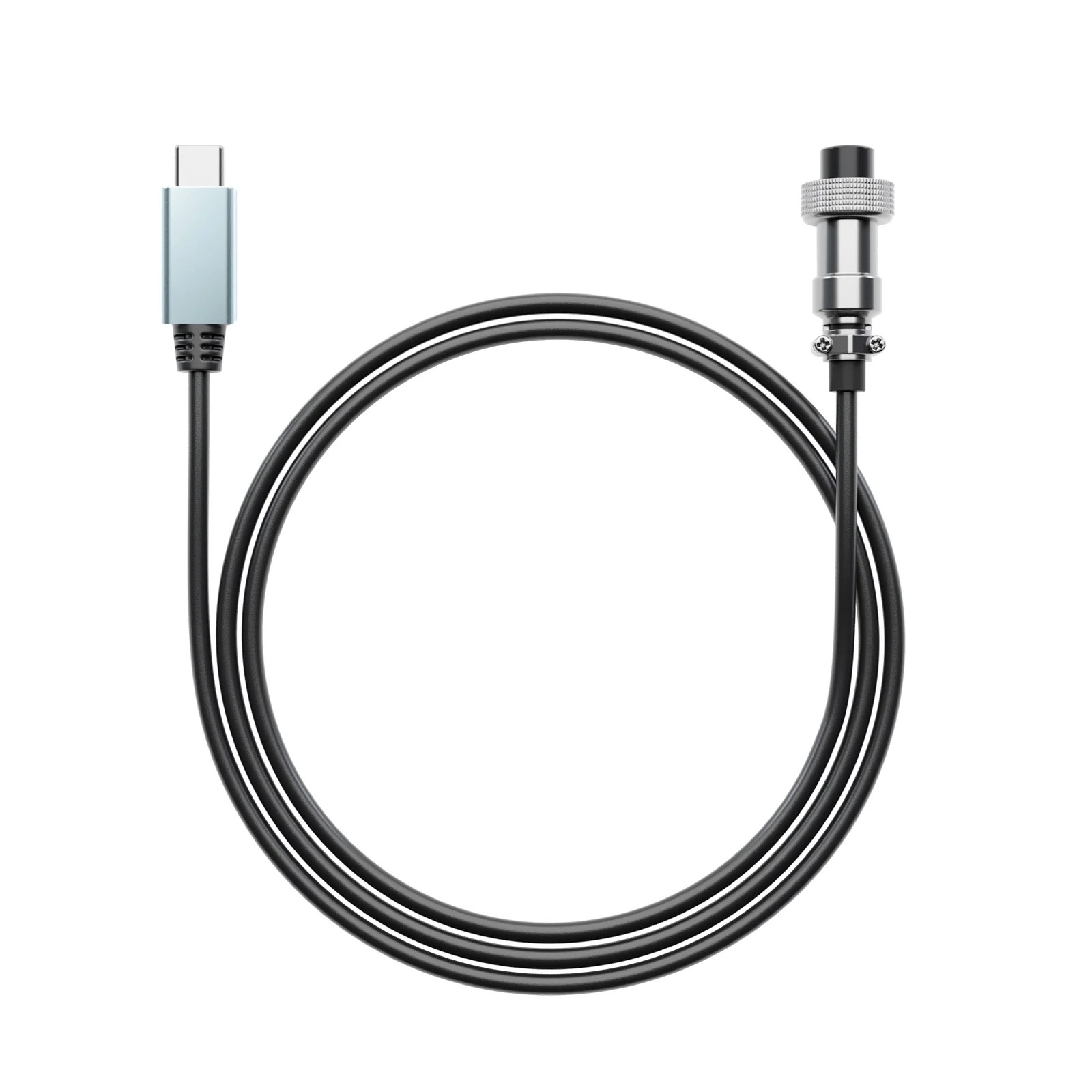
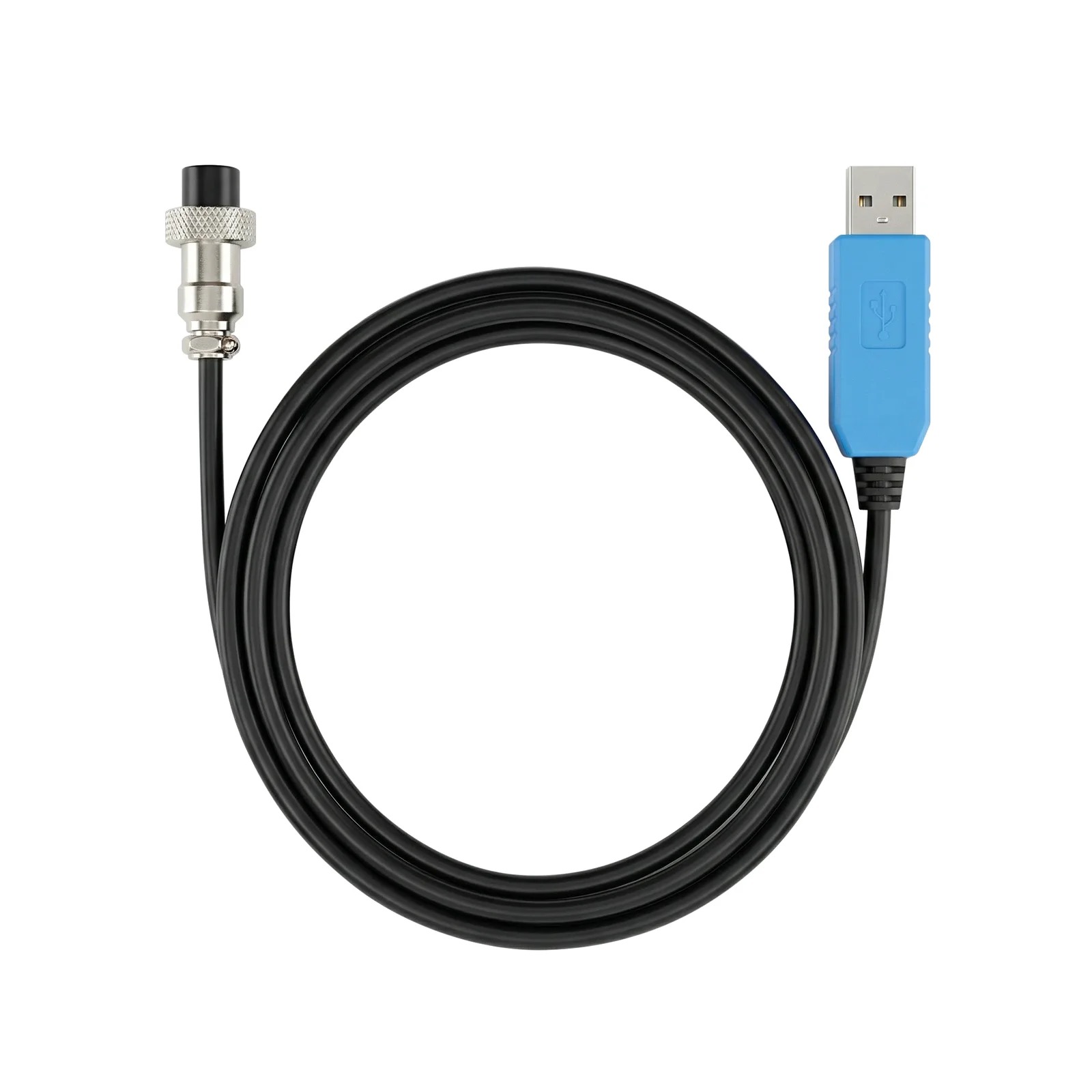
  <figcaption>Author's verified hardware cabling: The official AD-508 USB-C Audio Cable (left) and the stock blue USB CAT serial adapter (right).</figcaption>
</figure>

<ul>
  <li><strong>Digital Audio Link (<code class="language-plaintext highlighter-rouge">REM/DATA</code> Port → Mac USB-C):</strong><br />
The official <strong>Lab599 AD-508 USB-C Audio-Data Cable</strong> (7-pin GX12 to USB-C). It incorporates an integrated hardware USB DAC/ADC codec directly inside the overmolded plug. This eliminates external USB soundcards, ground-loop isolators, and analog patch cords.</li>
  <li><strong>Serial CAT Control (<code class="language-plaintext highlighter-rouge">CAT</code> Port → Mac USB):</strong><br />
The <strong>stock blue USB CAT adapter</strong> supplied in the TX-500 box (4-pin GX12 to USB-A with an internal FTDI bridge), connected via a standard USB-A to USB-C dongle or powered hub.</li>
</ul>

<h3 id="the-cable-ecosystem-at-a-glance">The Cable Ecosystem at a Glance</h3>

<table>
  <thead>
    <tr>
      <th style="text-align: left">Cable Model</th>
      <th style="text-align: left">Radio Port</th>
      <th style="text-align: left">Computer Interface</th>
      <th style="text-align: left">Description &amp; Role</th>
    </tr>
  </thead>
  <tbody>
    <tr>
      <td style="text-align: left"><strong>AD-508</strong></td>
      <td style="text-align: left"><code class="language-plaintext highlighter-rouge">REM/DATA</code> (7-pin)</td>
      <td style="text-align: left"><strong>USB-C</strong></td>
      <td style="text-align: left"><strong>Author’s Top Recommendation.</strong> Direct digital USB-C audio codec.</td>
    </tr>
    <tr>
      <td style="text-align: left"><strong>Stock Blue CAT</strong></td>
      <td style="text-align: left"><code class="language-plaintext highlighter-rouge">CAT</code> (4-pin)</td>
      <td style="text-align: left"><strong>USB-A</strong></td>
      <td style="text-align: left">Included in radio box; reliable FTDI serial CAT control.</td>
    </tr>
    <tr>
      <td style="text-align: left"><strong>AD-502</strong></td>
      <td style="text-align: left"><code class="language-plaintext highlighter-rouge">CAT</code> (4-pin)</td>
      <td style="text-align: left"><strong>USB-A</strong></td>
      <td style="text-align: left">Black housing version of the stock CAT cable.</td>
    </tr>
    <tr>
      <td style="text-align: left"><strong>AD-514</strong></td>
      <td style="text-align: left"><code class="language-plaintext highlighter-rouge">CAT</code> (4-pin)</td>
      <td style="text-align: left"><strong>USB-C</strong></td>
      <td style="text-align: left">Direct USB-C CAT cable; avoids USB-A dongles.</td>
    </tr>
    <tr>
      <td style="text-align: left"><strong>AD-509</strong></td>
      <td style="text-align: left"><code class="language-plaintext highlighter-rouge">REM/DATA</code> (7-pin)</td>
      <td style="text-align: left"><strong>USB-A</strong></td>
      <td style="text-align: left">Digital audio cable with inline C-Media USB soundcard module.</td>
    </tr>
    <tr>
      <td style="text-align: left"><strong>AD-506</strong></td>
      <td style="text-align: left"><code class="language-plaintext highlighter-rouge">REM/DATA</code> (7-pin)</td>
      <td style="text-align: left"><strong>Dual 3.5 mm TRS</strong></td>
      <td style="text-align: left">Analog breakout; requires an external USB audio interface on Mac.</td>
    </tr>
  </tbody>
</table>

<hr />

<h2 id="3-radio-menu-setup--locking-dig-mode">3. Radio Menu Setup &amp; Locking DIG Mode</h2>

<p>Long-press the front-panel <strong>MENU</strong> button to configure these fundamental parameters:</p>

<ol>
  <li><strong>Menu 34 (<code class="language-plaintext highlighter-rouge">CAT PROTOCOL</code>):</strong> Set to <strong><code class="language-plaintext highlighter-rouge">TS2000</code></strong> (Kenwood TS-2000 command set emulation).</li>
  <li><strong>Menu 35 (<code class="language-plaintext highlighter-rouge">CAT SPEED</code>):</strong> Set to <strong><code class="language-plaintext highlighter-rouge">9600</code></strong> baud.</li>
  <li><strong>Menu 22 (<code class="language-plaintext highlighter-rouge">TX METR</code>):</strong> Set to <strong><code class="language-plaintext highlighter-rouge">MIC</code></strong> (prepares the on-screen bar graph for digital drive calibration).</li>
  <li><strong>Menu 09 (<code class="language-plaintext highlighter-rouge">GAIN</code> → <code class="language-plaintext highlighter-rouge">DIG</code>):</strong> Set initial value to <strong><code class="language-plaintext highlighter-rouge">20</code></strong>.</li>
  <li><strong>Menu 11 (<code class="language-plaintext highlighter-rouge">IF SHIFT</code>):</strong> Set to <strong><code class="language-plaintext highlighter-rouge">0</code></strong>.</li>
  <li><strong>Menu 12 (<code class="language-plaintext highlighter-rouge">RF GAIN</code>):</strong> Set to <strong><code class="language-plaintext highlighter-rouge">100%</code></strong>.</li>
</ol>

<h3 id="the-front-panel-mode-secret-cycle-to-dig">The Front-Panel Mode Secret: Cycle to DIG</h3>

<p>A frequent stumbling block for newcomers is operating in SSB voice mode.</p>

<p><strong>Repeatedly press the front-panel MODE button</strong> to cycle through the options:</p>

\[\texttt{LSB} \longrightarrow \texttt{USB} \longrightarrow \texttt{CW} \longrightarrow \mathbf{\texttt{DIG}} \longrightarrow \texttt{AM} \longrightarrow \texttt{NFM}\]

<p>Stop when the top status bar on the LCD clearly reads <strong><code class="language-plaintext highlighter-rouge">DIG</code></strong>.</p>

<p>In <strong><code class="language-plaintext highlighter-rouge">DIG</code></strong> mode, the TX-500 mutes the front microphone, shuts off speech compression, and routes transmit modulation exclusively to the rear <code class="language-plaintext highlighter-rouge">REM/DATA</code> line-in. If the screen says <code class="language-plaintext highlighter-rouge">USB</code>, digital modulation will not reach the transmitter!</p>

<hr />

<h2 id="4-macos-audio-calibration-the-two-golden-rules">4. macOS Audio Calibration: The Two Golden Rules</h2>

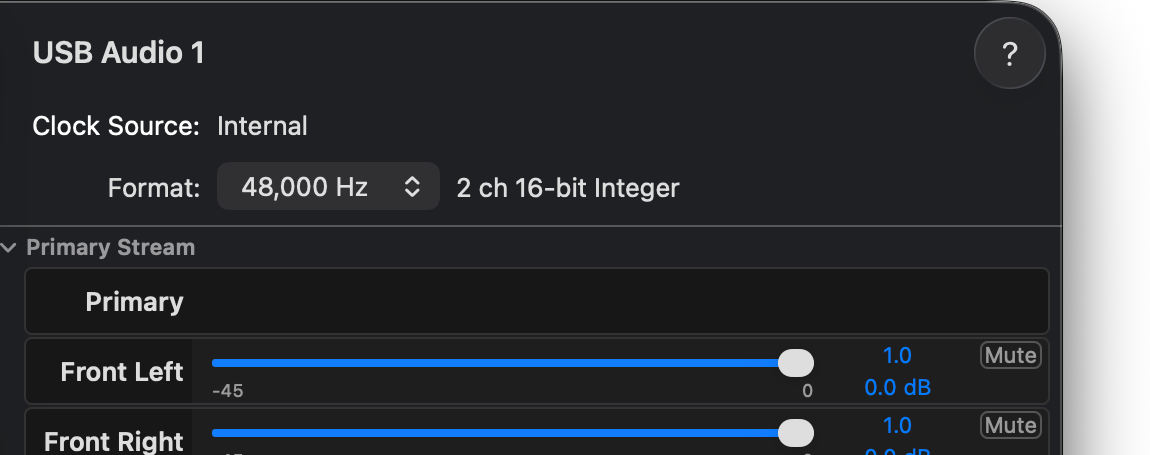
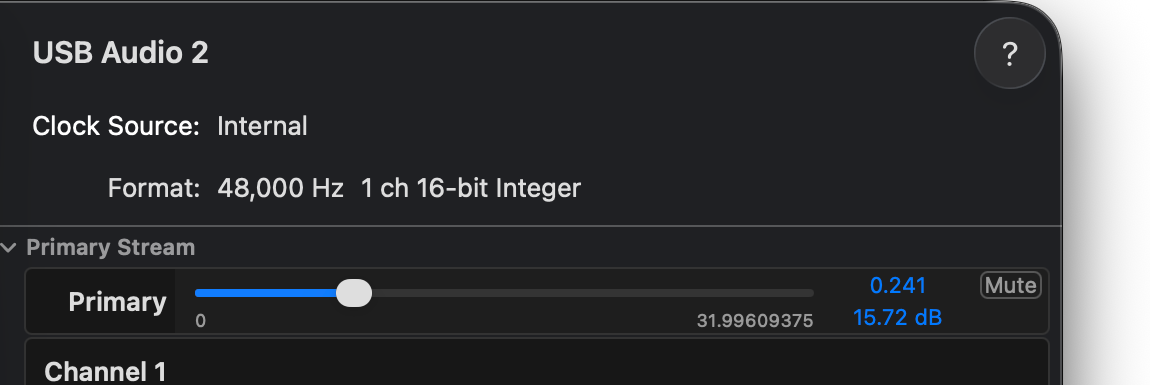
<p>Correct audio gain staging between macOS CoreAudio and the TX-500’s DSP codec is the single most critical factor in achieving clean FT8 signals. Open <strong>Applications → Utilities → Audio MIDI Setup</strong> and apply these two rules:</p>

<figure>
  <div style="display: flex; gap: 1rem; flex-wrap: wrap; justify-content: center; margin-bottom: 0.5rem;">
    <div style="flex: 1 1 300px; max-width: 450px;">
      <img src="/assets/images/tx500/output_pane.png" alt="macOS Audio MIDI Setup Output volume at 100 percent" width="1150" height="455" style="width: 100%; border-radius: 6px;" loading="lazy" />
    </div>
    <div style="flex: 1 1 300px; max-width: 450px;">
      <img src="/assets/images/tx500/input_pane.png" alt="macOS Audio MIDI Setup Input volume at 24 percent" width="1150" height="385" style="width: 100%; border-radius: 6px;" loading="lazy" />
    </div>
  </div>
  <figcaption>Audio MIDI Setup on macOS: Rule 1 Output at 100% (left) to resolve the 0W bug; Rule 2 Input at &le;24% (right) to eliminate ADC clipping.</figcaption>
</figure>

<h3 id="rule-1-output-volume-must-be-100-10--00-db">Rule 1: Output Volume MUST Be 100% (1.0 / 0.0 dB)</h3>

<ul>
  <li><strong>The Symptom:</strong> WSJT-X asserts CAT PTT, the radio’s red TX LED lights up, relays click, but the inline wattmeter reads <strong>0.0 Watts RF power</strong>.</li>
  <li><strong>The Cause:</strong> Modulation in <code class="language-plaintext highlighter-rouge">DIG</code> mode requires a line-level audio drive of at least $300\text{ mV RMS}$. At macOS’s default 50% slider, line voltage is too low to excite the balanced modulator.</li>
  <li><strong>The Solution:</strong> In Audio MIDI Setup, select the output device corresponding to your cable (e.g., <code class="language-plaintext highlighter-rouge">USB Audio 1</code>) and push the <strong>Output Volume to 100% (slider 1.0 / 0.0 dB)</strong>.</li>
</ul>

<h3 id="rule-2-input-volume-must-be-set-to-24-slider-0241--1572-db">Rule 2: Input Volume MUST Be Set to ≤24% (Slider 0.241 / 15.72 dB)</h3>

<ul>
  <li><strong>The Symptom:</strong> Upon launching WSJT-X, the vertical RX signal meter pegs at <strong>85 dB</strong> and glows <strong>solid red</strong>, completely inhibiting FT8 decodes.</li>
  <li><strong>The Cause:</strong> Severe soundcard ADC saturation (audio clipping). The input preamplifier is overloaded by the unattenuated line level from the radio.</li>
  <li><strong>The Solution:</strong> Pull the <strong>Input Volume slider down to ≤24% (0.241)</strong>. The macOS interface displays <code class="language-plaintext highlighter-rouge">15.72 dB</code> hardware preamp gain (corresponding to $-12.36\text{ dBFS}$ digital headroom). This immediately drops the WSJT-X noise floor into the ideal <strong>30–50 dB solid green decoding zone</strong>.</li>
</ul>

<hr />

<h2 id="5-wsjt-x-configuration">5. WSJT-X Configuration</h2>

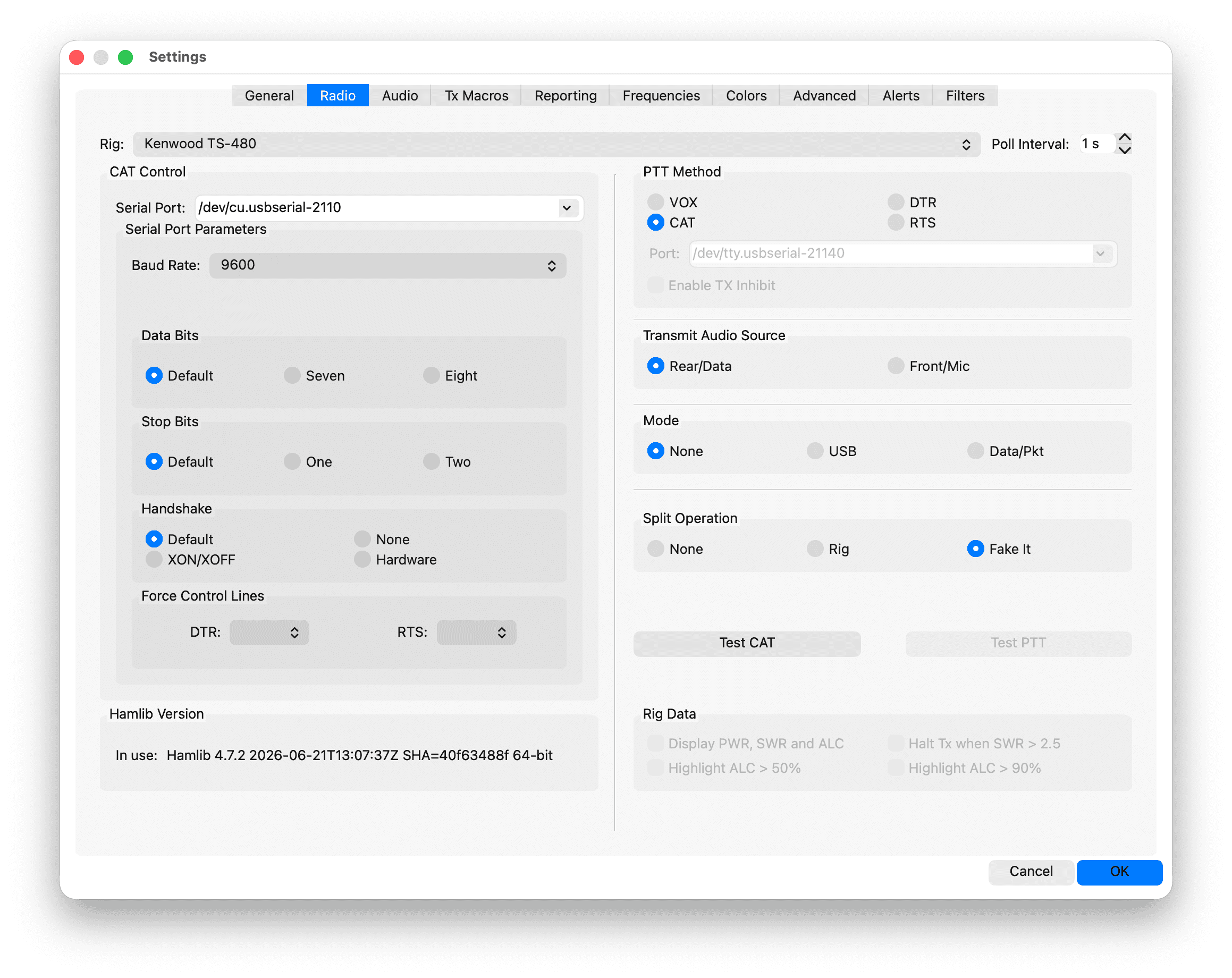
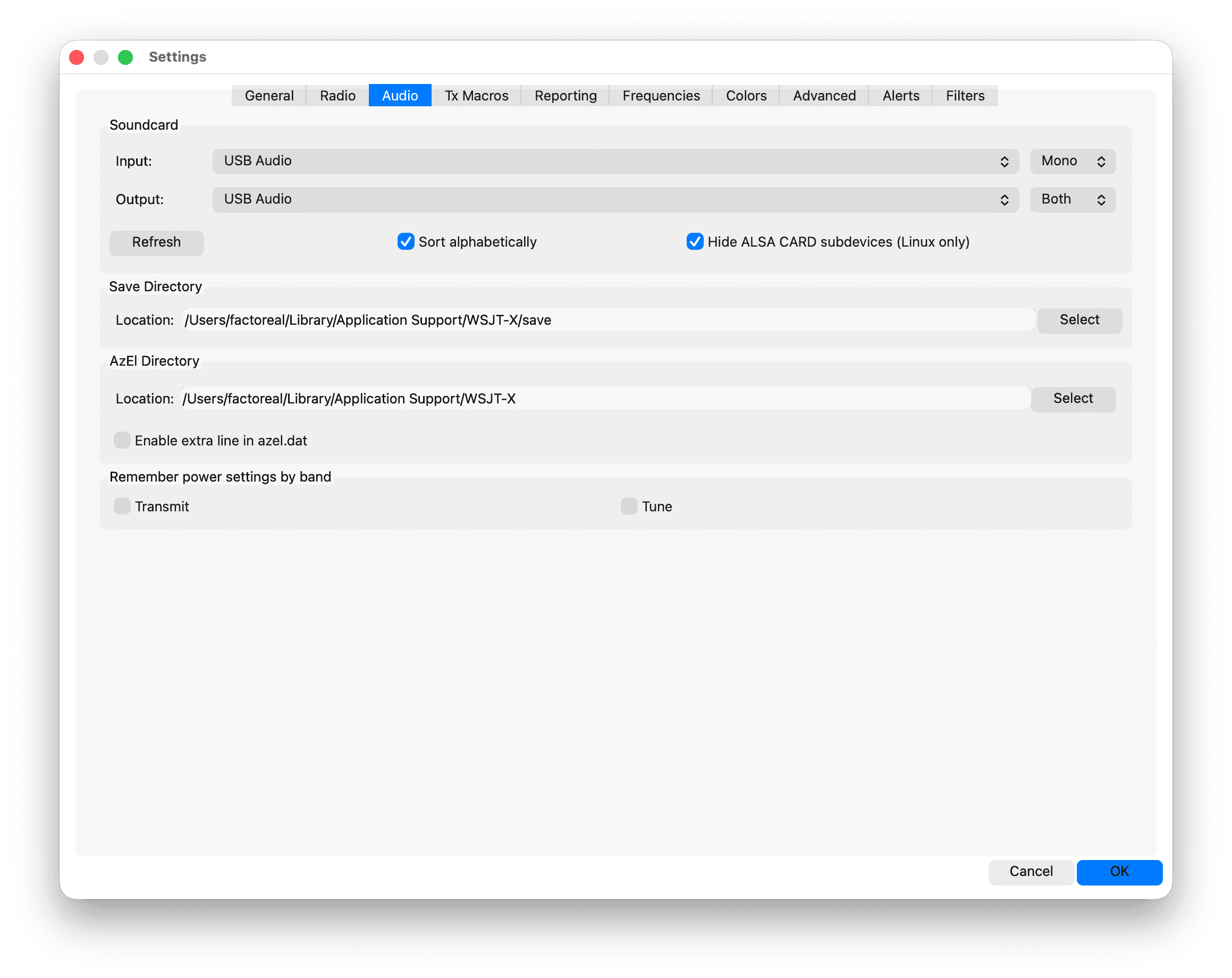
<p>With cabling and audio levels calibrated, configure <strong>WSJT-X</strong> (tested against v3.2.0 improved PLUS on macOS Tahoe):</p>

<figure>
  <div style="display: flex; gap: 1rem; flex-wrap: wrap; justify-content: center; margin-bottom: 0.5rem;">
    <div style="flex: 1 1 300px; max-width: 450px;">
      <img src="/assets/images/tx500/wsjtx_radio_tx500.png" alt="WSJT-X Radio settings for TX-500" width="2318" height="1840" style="width: 100%; border-radius: 6px;" loading="lazy" />
    </div>
    <div style="flex: 1 1 300px; max-width: 450px;">
      <img src="/assets/images/tx500/wsjtx_audio_tx500.png" alt="WSJT-X Audio settings for TX-500" width="2318" height="1840" style="width: 100%; border-radius: 6px;" loading="lazy" />
    </div>
  </div>
  <figcaption>Verified WSJT-X settings on macOS: Radio tab configured for Kenwood TS-480 and Mode None (left), Audio routing via USB Audio Device (right).</figcaption>
</figure>

<h3 id="settings--radio-critical-values">Settings → Radio (Critical Values)</h3>

<ul>
  <li><strong>Rig:</strong> <strong><code class="language-plaintext highlighter-rouge">Kenwood TS-480</code></strong><br />
<em>(Mandatory. While the radio menu specifies TS2000, Hamlib’s TS-480 backend provides the most rock-solid polling and CAT PTT stability for the TX-500).</em></li>
  <li><strong>Serial Port:</strong> <code class="language-plaintext highlighter-rouge">/dev/cu.usbserial-XXXX</code></li>
  <li><strong>Baud Rate:</strong> <code class="language-plaintext highlighter-rouge">9600</code></li>
  <li><strong>Data Bits / Stop Bits / Handshake:</strong> <code class="language-plaintext highlighter-rouge">8</code> / <code class="language-plaintext highlighter-rouge">Default</code> / <code class="language-plaintext highlighter-rouge">None</code></li>
  <li><strong>Transmit Audio Source:</strong> <code class="language-plaintext highlighter-rouge">Rear/Data</code></li>
  <li><strong>Mode:</strong> <strong><code class="language-plaintext highlighter-rouge">None</code></strong><br />
<em>(Crucial! Setting Mode to <code class="language-plaintext highlighter-rouge">Data/Pkt</code> or <code class="language-plaintext highlighter-rouge">USB</code> causes WSJT-X to send automated mode commands that force the radio into SSB voice mode on PTT, dropping transmit power to zero. Setting Mode to <code class="language-plaintext highlighter-rouge">None</code> allows the radio to stay locked in front-panel <code class="language-plaintext highlighter-rouge">DIG</code> mode).</em></li>
  <li><strong>Split Operation:</strong> <strong><code class="language-plaintext highlighter-rouge">Fake It</code></strong></li>
  <li><strong>PTT Method:</strong> <strong><code class="language-plaintext highlighter-rouge">CAT</code></strong></li>
</ul>

<h3 id="transmit-audio-calibration-protocol">Transmit Audio Calibration Protocol</h3>

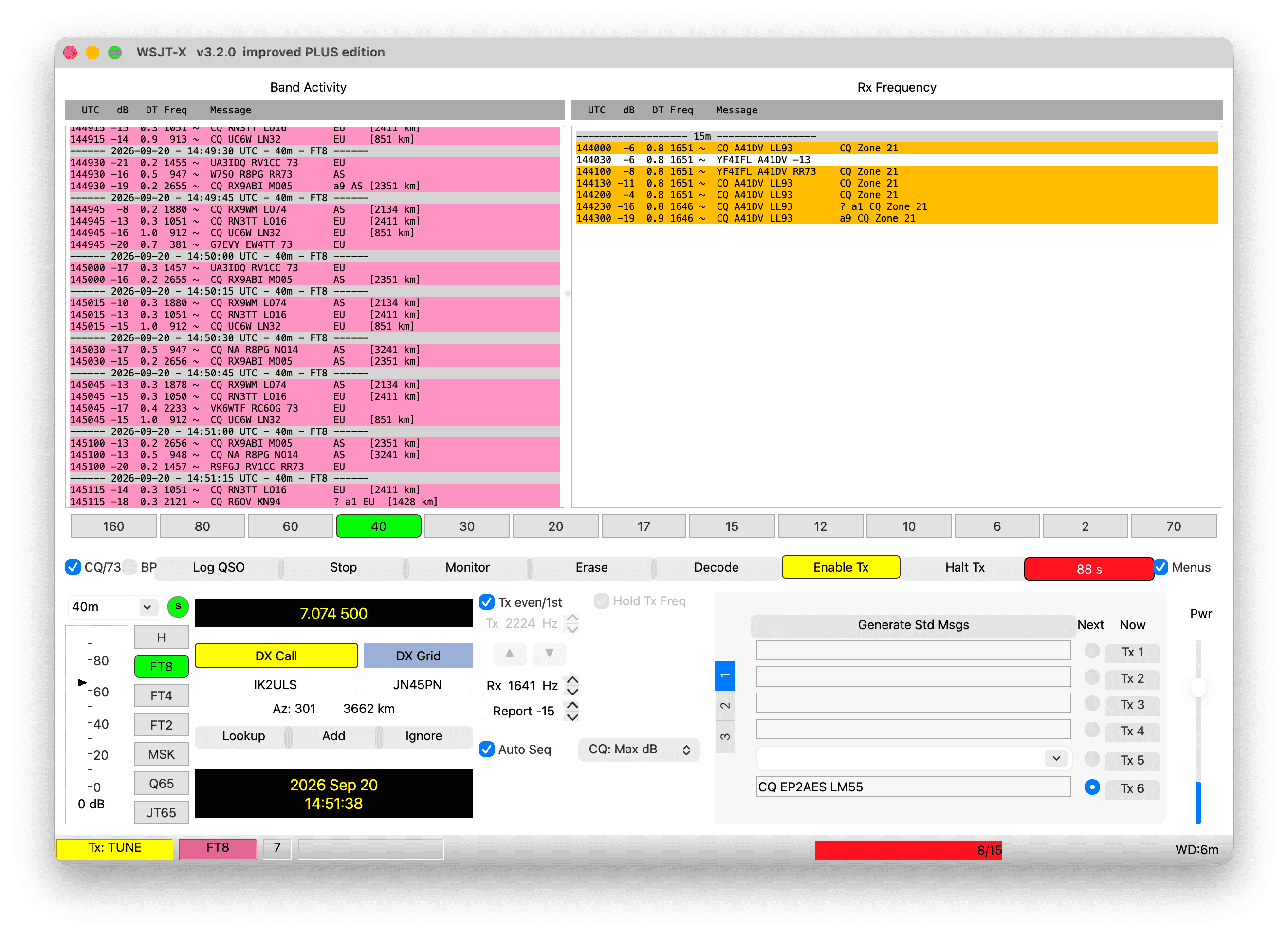
<p>Connect a matched 50 $\Omega$ dummy load, ensure <strong>Menu 22 (<code class="language-plaintext highlighter-rouge">TX METR</code>)</strong> is set to <strong><code class="language-plaintext highlighter-rouge">MIC</code></strong>, and click the <strong>Tune</strong> button in WSJT-X:</p>

<figure>
  <img src="/assets/images/tx500/wsjtx_tune_macos.png" alt="WSJT-X Tune active on macOS Tahoe" width="2646" height="1924" loading="lazy" />
  <figcaption>Engaging WSJT-X Tune to generate a continuous calibration tone while monitoring the TX-500 MIC meter scale.</figcaption>
</figure>

<p>While transmitting the test tone, rotate the radio’s multi-function dial to adjust <strong>Menu 09 (<code class="language-plaintext highlighter-rouge">GAIN</code> → <code class="language-plaintext highlighter-rouge">DIG</code>)</strong> until <strong>all segments on the LCD indicator scale are completely filled</strong>. Official Lab599 documentation explicitly notes: <em>“If the DIG level approaches maximum (50) but the scale is not filled, increase the audio output level on the PC”</em>—confirming our 100% output rule!</p>

<hr />

<h2 id="6-native-station--ft8-studio-lab599-utility-for-macos">6. Native Station &amp; FT8 Studio: Lab599 Utility for macOS</h2>

<p>While WSJT-X is the industry standard for digital operation, I wanted an elegant, self-contained native macOS solution. Over the past several weeks, I expanded the open-source <strong>Lab599 Utility</strong> (now at <strong>v2.243</strong>) into a complete station environment and native digital mode studio.</p>

<figure>
  <img src="/assets/images/tx500/lab599_utility_crop.png" alt="Lab599 Utility for macOS station overview" width="3066" height="1792" loading="lazy" />
  <figcaption>Lab599 Utility for macOS: Live telemetry, RTC time sync, settings backup, and 100-channel memory manager.</figcaption>
</figure>

<h3 id="station-management-capabilities">Station Management Capabilities</h3>

<ul>
  <li><strong>Native Firmware Flashing:</strong> Flash official <code class="language-plaintext highlighter-rouge">.fw</code> releases at 57,600 baud with proper UART output queue drain pacing (<code class="language-plaintext highlighter-rouge">TIOCOUTQ</code>), completely bypassing Windows and Linux VMs.</li>
  <li><strong>Precision RTC Time Sync:</strong> Synchronizes the TX-500’s internal hardware clock to sub-second precision against Apple’s system time—indispensable for FT8 decoding during off-grid expeditions without internet.</li>
  <li><strong>Live Telemetry &amp; Diagnostics:</strong> Real-time monitoring of DC voltage, transmit current draw, internal PA temperature, forward power, and antenna SWR.</li>
  <li><strong>Memory &amp; Settings Backup:</strong> Full backup and restore of the radio’s configuration block and a complete 100-channel memory editor with CSV import/export.</li>
  <li><strong>Driver &amp; Security Fixer:</strong> One-click automated setup for FTDI D2XX drivers and macOS Gatekeeper authorization.</li>
</ul>

<h3 id="the-integrated-ft8--ft4-digital-studio">The Integrated FT8 / FT4 Digital Studio</h3>

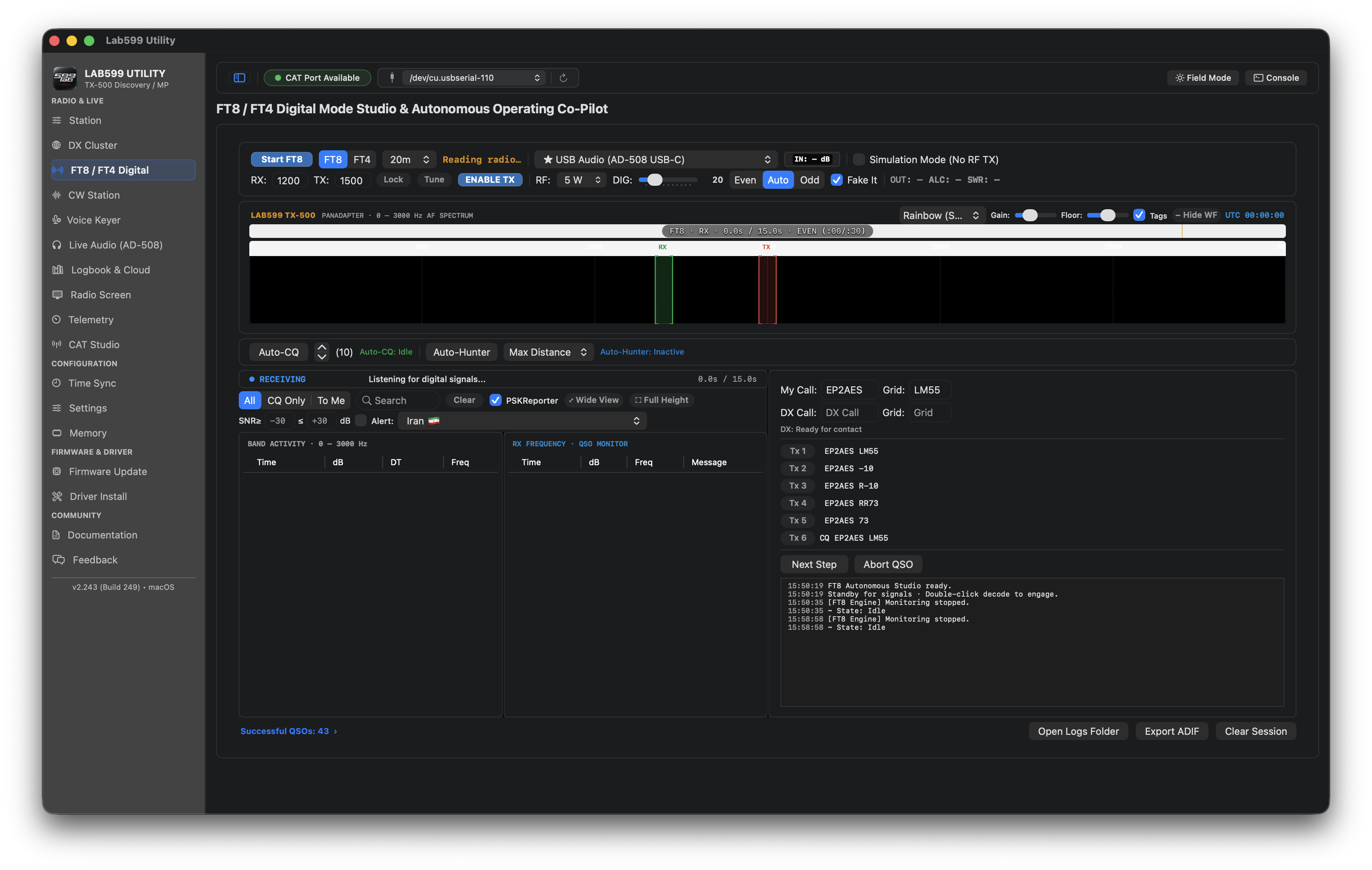
<p>Built directly into Lab599 Utility is a native <strong>FT8/FT4 Digital Studio</strong> that runs full digital cycles without opening WSJT-X:</p>

<figure>
  <img src="/assets/images/tx500/ft8_studio_dark_v2243.png" alt="Lab599 Utility FT8 Digital Studio in dark mode" width="3632" height="2304" loading="lazy" />
  <figcaption>The native dark-mode FT8/FT4 studio in Lab599 Utility: waterfall, CAT controls, live decodes, contact log, and ADIF export.</figcaption>
</figure>

<ul>
  <li><strong>Real-Time Waterfall &amp; Decoder:</strong> Decodes FT8 and FT4 signals from the AD-508 audio feed, highlighting CQ calls and messages addressed directly to your callsign.</li>
  <li><strong>CAT Sequencing:</strong> Automated transmit/receive sequencing with audio tone generation, band switching presets, and RF power/SWR telemetry.</li>
  <li><strong>Contact Logging &amp; ADIF Export:</strong> Automatic QSO logging with Maidenhead distance calculations and standard <code class="language-plaintext highlighter-rouge">.adi</code> logbook exports.</li>
  <li><strong>Optional PSK Reporter:</strong> Direct spotted report submission to PSK Reporter when connected to the internet.</li>
  <li><strong>Simulation Mode:</strong> Explore the interface, test CAT sequencing, and verify soundcard routing without radiating RF on the air.</li>
</ul>

<p>You can inspect the code, download releases, and contribute on GitHub:</p>

<p><a href="https://github.com/fact0real/Lab599-Utility" class="download-card"><strong>Lab599 Utility on GitHub: fact0real/Lab599-Utility</strong></a></p>

<hr />

<h2 id="7-thermal-management--field-operating-tips">7. Thermal Management &amp; Field Operating Tips</h2>

<p>FT8 operates at an aggressive <strong>~50% continuous transmit duty cycle</strong> (transmitting full power for 12.6 seconds out of every 15-second slot). At 10 Watts output, the TX-500 draws $1.8\text{–}2.2\text{ A}$ from 13.8 V, dissipating approximately 15 Watts of thermal energy.</p>

<p>Because the TX-500 has no noisy internal fan, the entire aluminum chassis acts as the heatsink. Under continuous FT8 calling:</p>
<ul>
  <li>Chassis temperature can reach $55^\circ\text{C}$ within 15–20 minutes.</li>
  <li>At $65^\circ\text{C}$, internal thermal protection kicks in, automatically throttling RF output power.</li>
</ul>

<h3 id="field-tested-cooling-solutions">Field-Tested Cooling Solutions</h3>

<ol>
  <li><strong>Fixed/Shack Station (External Fan):</strong> Position a small 5 V USB or 12 V brushless fan ($60\text{ mm}$ or $80\text{ mm}$) blowing across the rear heatsink ribs. Forced airflow reduces equilibrium temperatures by $15\text{–}20^\circ\text{C}$, enabling non-stop 10 W digital duty.</li>
  <li><strong>Ultralight Portable (Gel Ice-Pack):</strong> For SOTA/POTA deployments, place a sealed gel ice-pack wrapped in a thin microfiber cloth directly beneath the radio’s flat aluminum base. The TX-500’s IP65-sealed chassis prevents moisture penetration while keeping the radio under $35^\circ\text{C}$ through intense pileups.</li>
  <li><strong>RF Immunity:</strong> Snap Type-43 ferrite chokes on both ends of the CAT and audio cables, deploy a 1:1 current balun at the antenna feedpoint, and run your MacBook on internal battery power to eliminate ground loop hum.</li>
</ol>

<hr />

<h2 id="8-download-the-complete-engineering-manual-pdf">8. Download the Complete Engineering Manual (PDF)</h2>

<p>For bench reference, field use, and detailed troubleshooting tables, the complete 28-page technical guide is typeset in LaTeX with full schematics, decibel reconciliation formulas, and step-by-step checklists:</p>

<p><a href="/assets/downloads/FT8_on_Lab599_TX-500_macOS_v1.1.pdf" class="download-card">Download the Lab599 TX-500 macOS FT8 Guide (v1.1 PDF)</a></p>

<hr />

<h2 id="conclusion--feedback">Conclusion &amp; Feedback</h2>

<p>Pairing the Lab599 Discovery TX-500 with Apple Silicon on macOS delivers an exceptional, expedition-grade digital station. Whether you choose the battle-tested WSJT-X pipeline or the native Lab599 Utility FT8 Studio, following the calibrated audio rules and maintaining firmware v1.30.00 guarantees rock-solid contacts from anywhere on the globe.</p>

<p>If you test this setup, encounter unique edge cases, or have suggestions for the next release of Lab599 Utility, feel free to open an issue on GitHub or reach out via <a href="mailto:EP2AES@asis.sh?subject=TX-500%20macOS%20Digital%20Blueprint%20Feedback">EP2AES@asis.sh</a>.</p>

<p><em>73 de EP2AES</em></p>]]></content><author><name>EP2AES</name><email>EP2AES@asis.sh</email></author><category term="Guides" /><category term="macOS" /><category term="Lab599" /><category term="TX-500" /><category term="FT8" /><category term="WSJT-X" /><category term="Digital Modes" /><category term="QRP" /><category term="macOS" /><summary type="html"><![CDATA[A field-tested engineering blueprint for deploying the Lab599 Discovery TX-500 on macOS Tahoe, covering hardware cabling, audio gain calibration, WSJT-X setup, and the native FT8 studio in Lab599 Utility.]]></summary><media:thumbnail xmlns:media="http://search.yahoo.com/mrss/" url="https://ep2aes.asis.sh/assets/images/tx500/tx500_radio_discovery.png" /><media:content medium="image" url="https://ep2aes.asis.sh/assets/images/tx500/tx500_radio_discovery.png" xmlns:media="http://search.yahoo.com/mrss/" /></entry><entry xml:lang="en"><title type="html">A Friday Afternoon Challenge: Reverse Engineering a Native macOS Firmware Updater for the Lab599 TX-500</title><link href="https://ep2aes.asis.sh/log/2026/09/18/lab599-tx-500-native-macos-firmware-updater/" rel="alternate" type="text/html" title="A Friday Afternoon Challenge: Reverse Engineering a Native macOS Firmware Updater for the Lab599 TX-500" /><published>2026-09-18T17:00:00+03:30</published><updated>2026-09-18T17:00:00+03:30</updated><id>https://ep2aes.asis.sh/log/2026/09/18/lab599-tx-500-native-macos-firmware-updater</id><content type="html" xml:base="https://ep2aes.asis.sh/log/2026/09/18/lab599-tx-500-native-macos-firmware-updater/"><![CDATA[<p>It was a quiet Friday afternoon—the weekend in Iran—and a much-anticipated package finally landed on my bench: a brand-new <strong>Lab599 Discovery TX-500</strong> transceiver.</p>

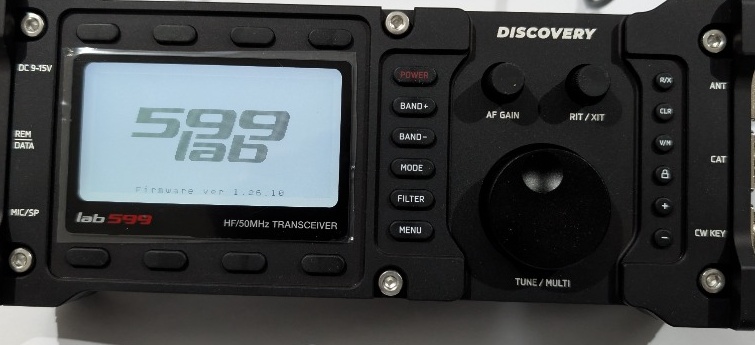
<p>The TX-500 is a gorgeous piece of radio engineering: compact, water-resistant, and CNC-machined from a solid block of aluminum. As soon as I hooked up DC power and booted the unit, the splash screen indicated <strong>Firmware ver 1.26.10</strong>.</p>

<figure>
  <img src="/assets/images/tx500/tx500-firmware-v126.jpg" alt="Lab599 TX-500 initial boot showing firmware version 1.26.10" width="760" height="360" loading="lazy" />
  <figcaption>Starting point: the factory firmware 1.26.10 on the TX-500 boot screen.</figcaption>
</figure>

<p>Checking the manufacturer’s portal at <a href="https://lab599.com/downloads">lab599.com/downloads</a>, I noticed that <strong>Firmware v1.30.00</strong> was available, packing important improvements to DSP filtering, audio levels, and CAT stability.</p>

<p>Naturally, I wanted to upgrade immediately. But then I hit an unexpected snag.</p>

<hr />

<h2 id="the-roadblock-no-mac-allowed">The Roadblock: No Mac Allowed</h2>

<p>The official Lab599 firmware update tools are distributed strictly as precompiled executables for <strong>Windows</strong> and <strong>Linux (x86_64)</strong>.</p>

<p>Now, I have a long-standing, visceral dislike for Windows—I avoid running it whenever humanly possible. And on this particular holiday afternoon, I didn’t have a Linux machine running nearby either. My daily driver is an Apple Silicon Mac.</p>

<p>I could have tried wrestling with a virtual machine, but USB-to-serial passthrough in VMs frequently mangles low-level serial handshakes and bootloader timings.</p>

<p>So instead of looking for a Windows laptop, I decided to give myself a proper weekend challenge:</p>

<blockquote>
  <p><strong>Can we reverse engineer the official updater protocol and build a 100% native, standalone macOS application to flash the TX-500?</strong></p>
</blockquote>

<hr />

<h2 id="the-roadblocks-the-firmware-is-not-sent">The Roadblocks: “The Firmware is Not Sent”</h2>

<p>Entering bootloader mode on the TX-500 is straightforward according to the <a href="https://lab599.com/downloads">Lab599 documentation</a>:</p>
<ol>
  <li>Power off the transceiver.</li>
  <li>Hold down the <strong>third top function button</strong> (just above the display).</li>
  <li>Press the <strong>POWER</strong> button.</li>
</ol>

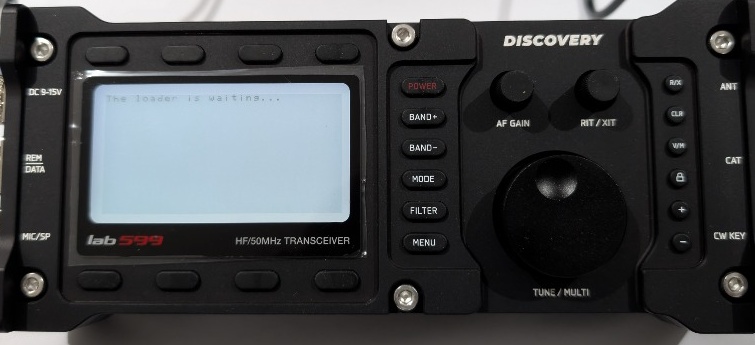
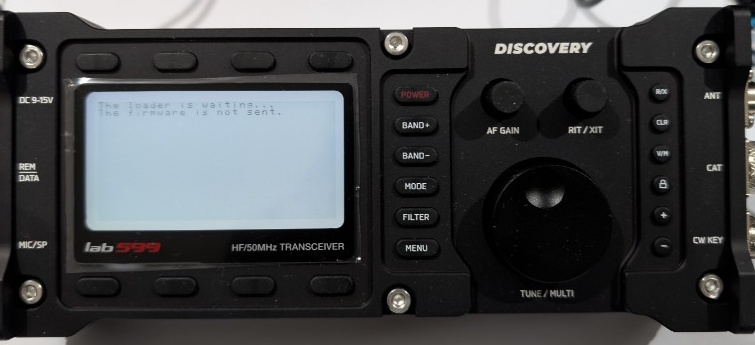
<p>The backlit LCD woke up with a solitary line of text:</p>

<div class="language-text highlighter-rouge"><div class="highlight"><pre class="highlight"><code>The loader is waiting...
</code></pre></div></div>

<figure>
  <img src="/assets/images/tx500/tx500-bootloader-waiting.jpg" alt="TX-500 in bootloader mode showing The loader is waiting" width="755" height="355" loading="lazy" />
  <figcaption>The bootloader waiting for incoming transmission over the CAT port.</figcaption>
</figure>

<p>I connected the radio’s 4-pin GX12 CAT cable to my Mac via a USB-to-UART adapter (<code class="language-plaintext highlighter-rouge">/dev/cu.usbserial-120</code>).</p>

<p>Initially, I wrote a quick Python test script to pump the <code class="language-plaintext highlighter-rouge">.fw</code> file into the serial interface. The result? Total silence. After a short delay, the TX-500 screen updated with a frustrating error:</p>

<div class="language-text highlighter-rouge"><div class="highlight"><pre class="highlight"><code>The loader is waiting...
The firmware is not sent.
</code></pre></div></div>

<figure>
  <img src="/assets/images/tx500/tx500-bootloader-fail.jpg" alt="TX-500 showing firmware update failed error message" width="757" height="358" loading="lazy" />
  <figcaption>Hitting the wall: The bootloader timing out with "The firmware is not sent."</figcaption>
</figure>

<p>I had hit the wall. The bootloader wasn’t just a dumb byte sink—it required a very specific handshake and pacing mechanism.</p>

<hr />

<h2 id="cracking-the-bootloader-protocol">Cracking the Bootloader Protocol</h2>

<p>To understand what the transceiver was expecting, I analyzed the official Linux 1.0.1 and Windows 1.0.2 binaries.</p>

<p>It turned out that the Lab599 bootloader follows a strict <strong>Two-ACK handshake</strong>:</p>

<table>
  <thead>
    <tr>
      <th style="text-align: left">Parameter</th>
      <th style="text-align: left">Specification</th>
    </tr>
  </thead>
  <tbody>
    <tr>
      <td style="text-align: left"><strong>Baud Rate</strong></td>
      <td style="text-align: left"><code class="language-plaintext highlighter-rouge">57600</code></td>
    </tr>
    <tr>
      <td style="text-align: left"><strong>Framing</strong></td>
      <td style="text-align: left"><code class="language-plaintext highlighter-rouge">8N1</code> (8 data bits, no parity, 1 stop bit)</td>
    </tr>
    <tr>
      <td style="text-align: left"><strong>Flow Control</strong></td>
      <td style="text-align: left">None (Hardware &amp; software flow control must be disabled)</td>
    </tr>
    <tr>
      <td style="text-align: left"><strong>Header</strong></td>
      <td style="text-align: left">Exactly 16 bytes beginning with ASCII <code class="language-plaintext highlighter-rouge">BL20</code></td>
    </tr>
    <tr>
      <td style="text-align: left"><strong>First Handshake</strong></td>
      <td style="text-align: left">Radio verifies header and responds with <code class="language-plaintext highlighter-rouge">OK</code> (<code class="language-plaintext highlighter-rouge">0x4F 0x4B</code>)</td>
    </tr>
    <tr>
      <td style="text-align: left"><strong>Payload Stream</strong></td>
      <td style="text-align: left">Unfragmented binary stream transmitted without per-packet ACKs</td>
    </tr>
    <tr>
      <td style="text-align: left"><strong>Pacing</strong></td>
      <td style="text-align: left">Host output queue drain via <code class="language-plaintext highlighter-rouge">ioctl(..., TIOCOUTQ, ...)</code></td>
    </tr>
    <tr>
      <td style="text-align: left"><strong>Final Handshake</strong></td>
      <td style="text-align: left">Radio verifies flash checksum and replies with final <code class="language-plaintext highlighter-rouge">OK</code></td>
    </tr>
  </tbody>
</table>

\[\text{16-Byte Header (BL20)} \longrightarrow \text{Radio replies "OK"} \longrightarrow \text{Continuous Payload Stream} \longrightarrow \text{Final "OK"}\]

<h3 id="the-critical-timing-gotcha">The Critical Timing Gotcha</h3>

<p>The biggest pitfall was serial buffer pacing. Because the bootloader does not send flow control pulses or intermediate packet acknowledgments while receiving the firmware payload, flooding the UART driver too quickly overflows the internal receive buffer of the transceiver’s MCU. On the other hand, adding arbitrary <code class="language-plaintext highlighter-rouge">usleep()</code> delays causes the internal bootloader watchdog to abort.</p>

<p>The reliable solution—matching the official Linux behavior—was using the POSIX <code class="language-plaintext highlighter-rouge">TIOCOUTQ</code> <code class="language-plaintext highlighter-rouge">ioctl</code> call to monitor the Mac’s serial output FIFO:</p>

<div class="language-c highlighter-rouge"><div class="highlight"><pre class="highlight"><code><span class="c1">// Wait until the kernel serial queue has completely flushed before proceeding</span>
<span class="kt">int</span> <span class="n">queued_bytes</span> <span class="o">=</span> <span class="mi">0</span><span class="p">;</span>
<span class="k">while</span> <span class="p">(</span><span class="n">ioctl</span><span class="p">(</span><span class="n">serial_fd</span><span class="p">,</span> <span class="n">TIOCOUTQ</span><span class="p">,</span> <span class="o">&amp;</span><span class="n">queued_bytes</span><span class="p">)</span> <span class="o">==</span> <span class="mi">0</span> <span class="o">&amp;&amp;</span> <span class="n">queued_bytes</span> <span class="o">&gt;</span> <span class="mi">0</span><span class="p">)</span> <span class="p">{</span>
    <span class="n">usleep</span><span class="p">(</span><span class="mi">1000</span><span class="p">);</span> <span class="c1">// 1 ms yield</span>
<span class="p">}</span>
</code></pre></div></div>

<p>Once this was in place, the serial communication became rock-solid.</p>

<hr />

<h2 id="building-the-native-macos-utility">Building the Native macOS Utility</h2>

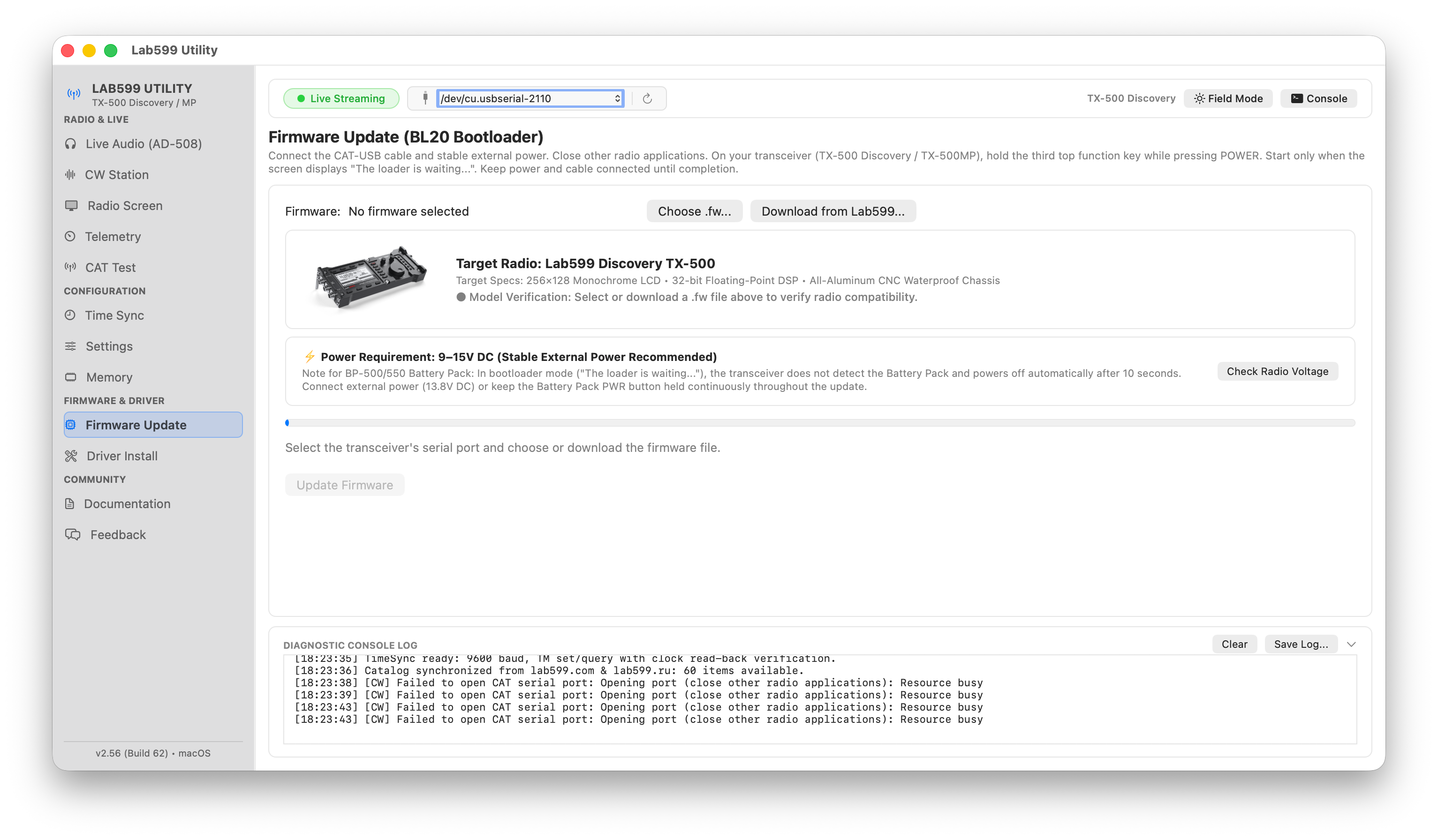
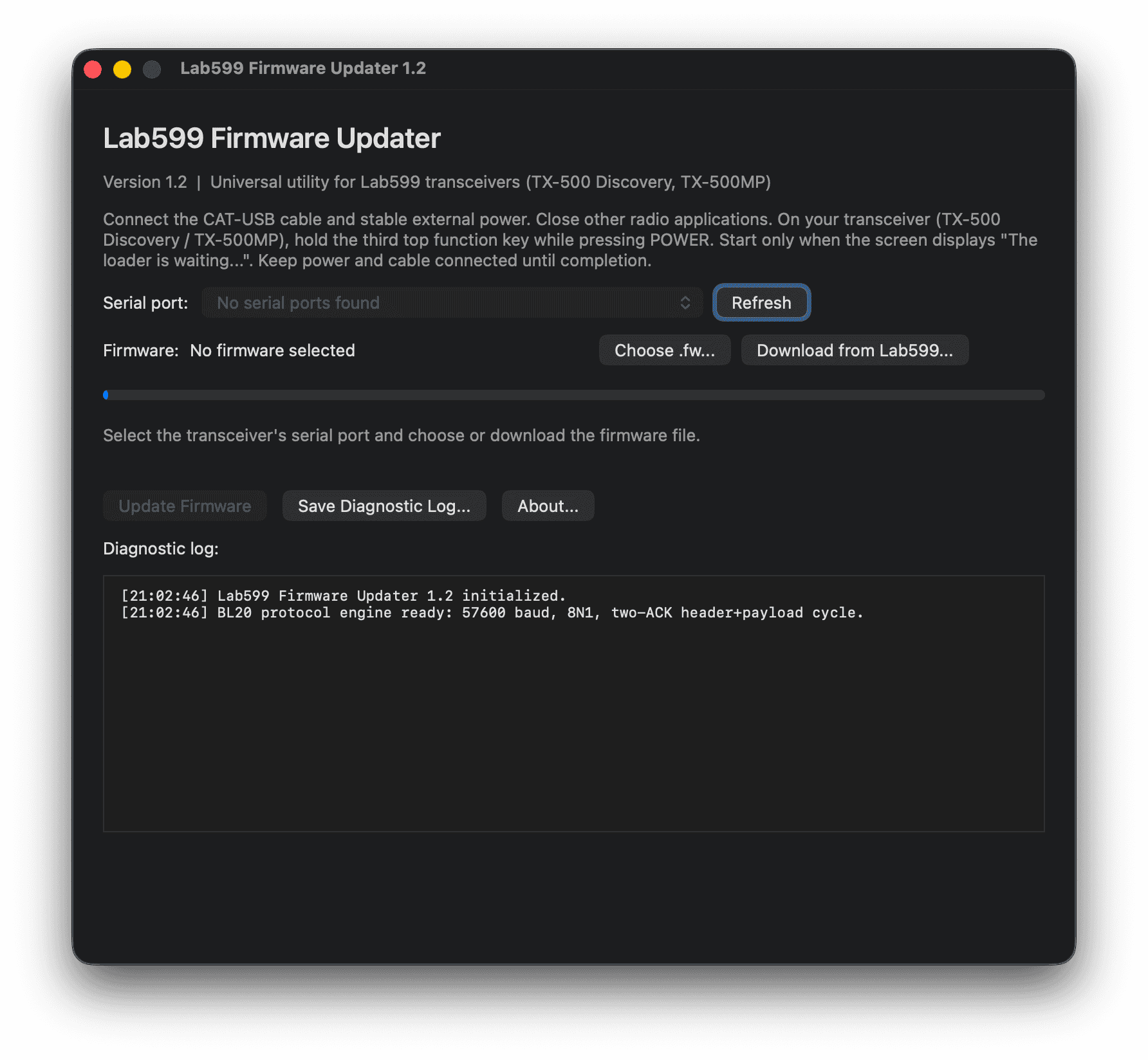
<p>With the protocol verified, I built a complete, standalone macOS Cocoa app in Objective-C: <strong>Lab599 Utility</strong> (which started as a firmware updater and has since grown to include memory channel editing, full settings backup/restore, time sync, and CAT connection testing).</p>

<figure>
  <img src="/assets/images/tx500/updater-1.png" alt="Lab599 Utility for macOS main window" width="800" height="500" loading="lazy" />
  <figcaption>The native macOS interface: clean, responsive, and supporting dark mode.</figcaption>
</figure>

<p>I wanted this tool to be effortless to use in the field:</p>

<ol>
  <li><strong>Serial Port Auto-Detection:</strong> Automatically discovers plugged-in USB-to-UART serial adapters without terminal commands.</li>
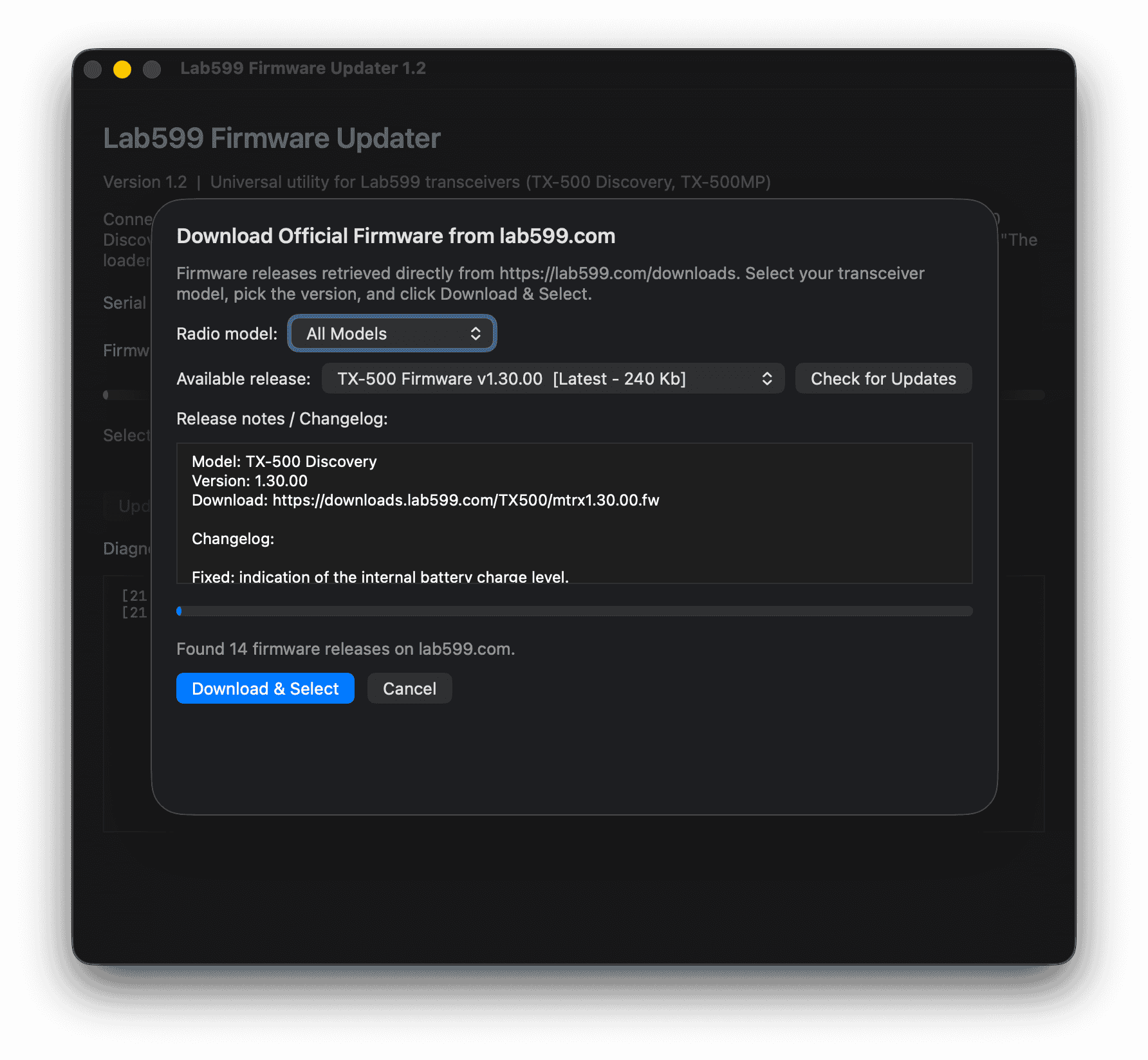
  <li><strong>Integrated Online Downloader:</strong> The app connects directly to <a href="https://lab599.com/downloads">lab599.com/downloads</a>, fetches the official release catalog, displays version numbers and release notes, and lets you download and select the latest <code class="language-plaintext highlighter-rouge">.fw</code> file with a single click.</li>
  <li><strong>Local File Support:</strong> Ability to pick any offline <code class="language-plaintext highlighter-rouge">.fw</code> file with pre-flight header validation.</li>
  <li><strong>Safety Guards:</strong> Uses <code class="language-plaintext highlighter-rouge">NSProcessInfo</code> to prevent system sleep during a flash, and blocks accidental window closure while the bootloader is active.</li>
  <li><strong>Universal Binary:</strong> Compiles natively for both <strong>Apple Silicon</strong> (M1/M2/M3/M4) and <strong>Intel</strong> Macs.</li>
</ol>

<figure>
  <img src="/assets/images/tx500/updater-3.png" alt="Online firmware downloader sheet fetching official releases from Lab599" width="800" height="520" loading="lazy" />
  <figcaption>Browsing and downloading official firmware directly inside the app.</figcaption>
</figure>

<hr />

<h2 id="the-moment-of-truth">The Moment of Truth</h2>

<p>With the utility ready, I connected the TX-500 to a clean 13.8V power supply, put it into bootloader mode, chose firmware <code class="language-plaintext highlighter-rouge">v1.30.00</code>, and hit <strong>Start Update</strong>.</p>

<p>The progress bar filled smoothly as thousands of bytes streamed over the CAT interface. After about twenty seconds, the radio’s serial output returned <code class="language-plaintext highlighter-rouge">OK</code>, and the application displayed:</p>

<blockquote>
  <p><strong><code class="language-plaintext highlighter-rouge">Firmware transfer complete</code></strong></p>
</blockquote>

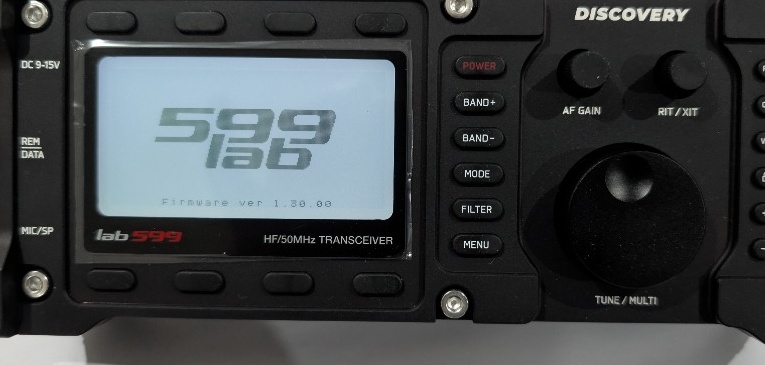
<p>I turned the radio off, powered it back on, and saw the victory screen:</p>

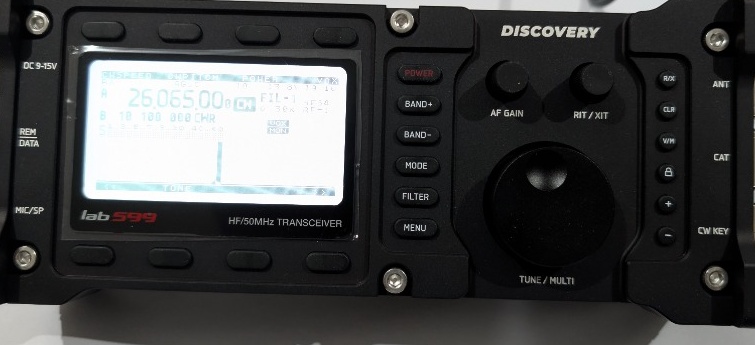
<div class="language-text highlighter-rouge"><div class="highlight"><pre class="highlight"><code>599 lab
Firmware ver 1.30.00
</code></pre></div></div>

<figure>
  <img src="/assets/images/tx500/tx500-firmware-v130.jpg" alt="Lab599 TX-500 successfully running firmware 1.30.00" width="770" height="375" loading="lazy" />
  <figcaption>Success! Firmware 1.30.00 up and running on the TX-500 Discovery.</figcaption>
</figure>

<p>Moments later, the radio was happily listening on the bands:</p>

<figure>
  <img src="/assets/images/tx500/tx500-operating.jpg" alt="Lab599 TX-500 operating normally on HF" width="760" height="360" loading="lazy" />
  <figcaption>Back on the air: The Discovery tuned up on the high bands.</figcaption>
</figure>

<hr />

<h2 id="open-source--community">Open Source &amp; Community</h2>

<p>I have published the complete project as open source under the MIT license on GitHub:</p>

<p><a href="https://github.com/fact0real/Lab599-Utility" class="download-card"><strong>Download &amp; Source on GitHub: fact0real/Lab599-Utility</strong></a></p>

<h3 id="compatibility-notes">Compatibility Notes</h3>

<ul>
  <li><strong>Tested Hardware:</strong> I personally tested and verified this software on the <strong>Lab599 TX-500 Discovery</strong>.</li>
  <li><strong>Other Models:</strong> Because Lab599 uses unified communication protocols across its product line, this utility is expected to work seamlessly with the <strong>TX-500MP</strong> and other Lab599 transceivers.</li>
</ul>

<p>If you test this tool with your own Lab599 rig, or if you run into any edge cases or questions, feel free to reach out via email at <a href="mailto:EP2AES@asis.sh?subject=Lab599%20macOS%20Utility%20Feedback">EP2AES@asis.sh</a>.</p>

<p><em>73 de EP2AES</em></p>]]></content><author><name>EP2AES</name><email>EP2AES@asis.sh</email></author><category term="Software" /><category term="macOS" /><category term="Lab599" /><category term="TX-500" /><category term="firmware" /><category term="reverse-engineering" /><category term="macOS" /><category term="Cocoa" /><category term="QRP" /><summary type="html"><![CDATA[When a newly arrived Lab599 TX-500 needed a firmware update on a quiet Friday holiday in Iran, the lack of an official macOS utility sparked a weekend reverse-engineering adventure.]]></summary><media:thumbnail xmlns:media="http://search.yahoo.com/mrss/" url="https://ep2aes.asis.sh/assets/images/tx500/tx500-firmware-v130.jpg" /><media:content medium="image" url="https://ep2aes.asis.sh/assets/images/tx500/tx500-firmware-v130.jpg" xmlns:media="http://search.yahoo.com/mrss/" /></entry><entry xml:lang="en"><title type="html">Blueprint Updated to v2.2: FX-4CR FT8 Setup on macOS</title><link href="https://ep2aes.asis.sh/log/2026/08/22/fx-4cr-macos-blueprint-v2-2/" rel="alternate" type="text/html" title="Blueprint Updated to v2.2: FX-4CR FT8 Setup on macOS" /><published>2026-08-22T12:00:00+03:30</published><updated>2026-08-22T12:00:00+03:30</updated><id>https://ep2aes.asis.sh/log/2026/08/22/fx-4cr-macos-blueprint-v2-2</id><content type="html" xml:base="https://ep2aes.asis.sh/log/2026/08/22/fx-4cr-macos-blueprint-v2-2/"><![CDATA[<p>Big thanks to <strong>Keith</strong> and the community in the <a href="https://groups.io/g/FXradio/topic/fx_4cr_complete_macos/120673473">FXradio Groups.io discussion</a>. Following Keith’s valuable notes, feedback, and technical observations, I have revised and published <strong>Version 2.2</strong> of the macOS FT8 setup guide.</p>

<p>This revision refines several hardware setup notes, gain-calibration details, and software parameters to make the blueprint more reliable for Apple Silicon Mac operators.</p>

<h2 id="download-version-22">Download version 2.2</h2>

<p>The complete guide remains a single, print-friendly PDF.</p>

<p><a href="/assets/downloads/FT8_on_FX-4CR_macOS_v2.2.pdf" class="download-card">Download the FX-4CR macOS FT8 Blueprint v2.2</a></p>

<p>As always, if you spot an edge case or have another field-tested correction, <a href="mailto:EP2AES@asis.sh?subject=FX-4CR%20Blueprint%20v2.2%20feedback">send me an email</a>.</p>

<h2 id="next-on-the-bench-linux">Next on the bench: Linux</h2>

<p>I am investigating, testing, and drafting a dedicated <strong>Linux setup guide</strong> for running FT8 with the FX-4CR.</p>

<p>Linux brings its own technical details: strict <code class="language-plaintext highlighter-rouge">udev</code> serial-port permissions, ALSA/PulseAudio/PipeWire audio routing, and Hamlib device mapping across distributions. Testing is taking a little longer because I want the published setup to be reproducible rather than merely plausible.</p>

<p>Stay tuned—the Linux blueprint is now in progress.</p>]]></content><author><name>EP2AES</name><email>EP2AES@asis.sh</email></author><category term="Documentation" /><category term="macOS" /><category term="FX-4CR" /><category term="FT8" /><category term="WSJT-X" /><category term="blueprint" /><summary type="html"><![CDATA[Version 2.2 of the FX-4CR macOS FT8 blueprint refines hardware notes, gain calibration, and WSJT-X setup—with a Linux guide now in progress.]]></summary><media:thumbnail xmlns:media="http://search.yahoo.com/mrss/" url="https://ep2aes.asis.sh/assets/images/i-love-ft8.jpg" /><media:content medium="image" url="https://ep2aes.asis.sh/assets/images/i-love-ft8.jpg" xmlns:media="http://search.yahoo.com/mrss/" /></entry><entry xml:lang="en"><title type="html">Announcing YAAM v1.0: A Native macOS ADIF Manager</title><link href="https://ep2aes.asis.sh/log/2026/07/31/announcing-yaam-v1/" rel="alternate" type="text/html" title="Announcing YAAM v1.0: A Native macOS ADIF Manager" /><published>2026-07-31T12:00:00+03:30</published><updated>2026-07-31T12:00:00+03:30</updated><id>https://ep2aes.asis.sh/log/2026/07/31/announcing-yaam-v1</id><content type="html" xml:base="https://ep2aes.asis.sh/log/2026/07/31/announcing-yaam-v1/"><![CDATA[<p>After several weeks of development, testing, and fine-tuning, I am excited to release the first public build of <strong>YAAM (Yet Another ADIF Manager)</strong>—a fast, native macOS desktop application for radio operators who want complete control over their ADIF logs.</p>

<p>As an Apple Silicon Mac user operating FT8 and FT4, I found a missing link: a clean, lightweight tool that could parse, filter, convert, and inspect large log files without a heavy cross-platform wrapper or web interface.</p>

<figure>
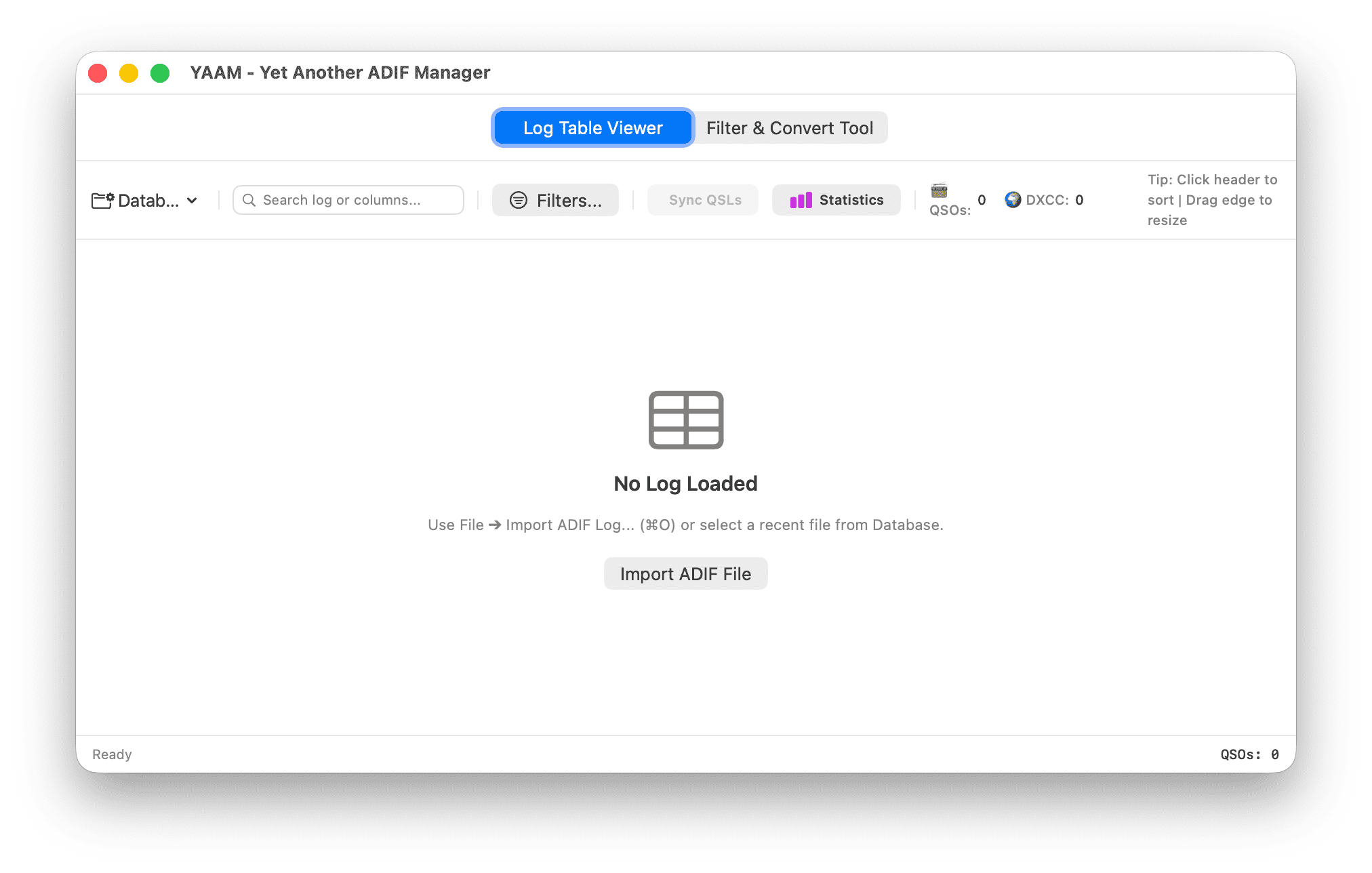
  <img src="/assets/images/yaam-welcome-screen.png" alt="YAAM welcome screen with ADIF import controls" width="2024" height="1288" loading="lazy" />
  <figcaption>Open an ADIF file with ⌘O or drag it directly into YAAM.</figcaption>
</figure>

<h2 id="what-yaam-can-do">What YAAM can do</h2>

<ul>
  <li><strong>Native macOS performance:</strong> built for Apple Silicon and Intel, with fast launch times and smooth table rendering.</li>
  <li><strong>Powerful log viewer:</strong> search, sort, and inspect tens of thousands of contacts. The current build has been tested with more than 10,000 QSOs.</li>
  <li><strong>QSL cloud sync:</strong> fetch and synchronize confirmed records from ARRL Logbook of the World and QRZ.com through their APIs.</li>
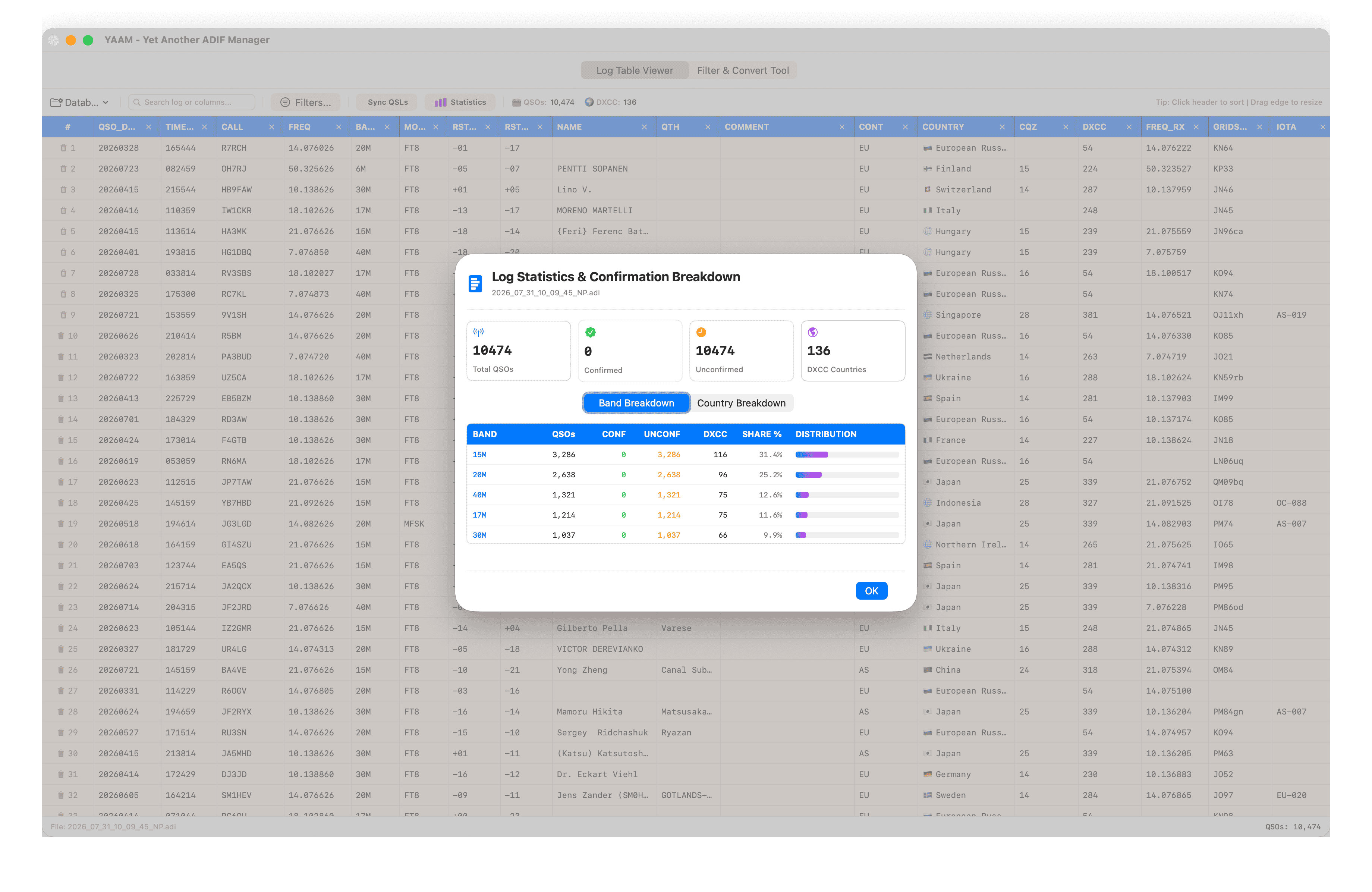
  <li><strong>Log analytics:</strong> review total and confirmed QSOs, unique DXCC counts, and band or country distributions.</li>
  <li><strong>Filtering and conversion:</strong> filter by date, band, or mode, then export sanitized ADIF files for contests or other logging applications.</li>
</ul>

<figure>
  <img src="/assets/images/yaam-statistics-modal.png" alt="YAAM statistics window with QSL confirmation and band breakdowns" width="3680" height="2392" loading="lazy" />
  <figcaption>Confirmation and band-distribution analytics inside the logbook.</figcaption>
</figure>

<h2 id="station-and-service-settings">Station and service settings</h2>

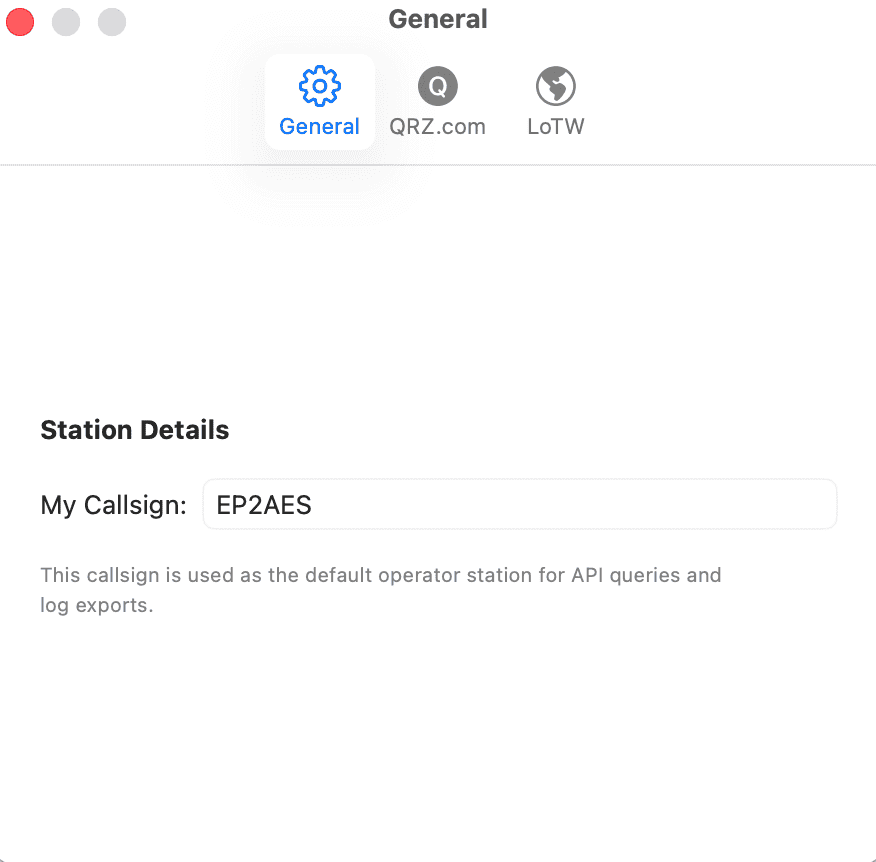
<p>The settings panel keeps station identity and cloud integrations in one place.</p>

<figure class="portrait-figure">
  <img src="/assets/images/yaam-settings.png" alt="YAAM settings window for callsign and QRZ or LoTW integration" width="876" height="862" loading="lazy" />
  <figcaption>Operator callsign and QSL service configuration.</figcaption>
</figure>

<p>This is the initial v1.0 release, so it may still contain edge-case bugs or small interface quirks. I would love fellow Mac operators to test it and send feedback or feature requests by email.</p>

<p><a href="/assets/downloads/YAAM.zip" class="download-card">Download YAAM for macOS</a></p>]]></content><author><name>EP2AES</name><email>EP2AES@asis.sh</email></author><category term="Software" /><category term="macOS" /><category term="YAAM" /><category term="ADIF" /><category term="QSL" /><category term="LoTW" /><category term="QRZ" /><summary type="html"><![CDATA[YAAM is a fast, native macOS application for importing, inspecting, filtering, analyzing, syncing, and exporting large ADIF amateur-radio logbooks.]]></summary><media:thumbnail xmlns:media="http://search.yahoo.com/mrss/" url="https://ep2aes.asis.sh/assets/images/yaam-table-viewer.png" /><media:content medium="image" url="https://ep2aes.asis.sh/assets/images/yaam-table-viewer.png" xmlns:media="http://search.yahoo.com/mrss/" /></entry><entry xml:lang="en"><title type="html">Operating the FX-4CR on macOS: A Complete FT8 Blueprint</title><link href="https://ep2aes.asis.sh/log/2026/07/30/operating-fx-4cr-on-macos-ft8/" rel="alternate" type="text/html" title="Operating the FX-4CR on macOS: A Complete FT8 Blueprint" /><published>2026-07-30T12:00:00+03:30</published><updated>2026-07-30T12:00:00+03:30</updated><id>https://ep2aes.asis.sh/log/2026/07/30/operating-fx-4cr-on-macos-ft8</id><content type="html" xml:base="https://ep2aes.asis.sh/log/2026/07/30/operating-fx-4cr-on-macos-ft8/"><![CDATA[<p>When I got my FX-4CR, setting it up on an M-series MacBook Air for digital modes such as FT8 became a puzzle. The useful information was scattered across forums, and the setup exposed several unexpected hurdles—from USB cable behavior to protocol error codes.</p>

<p>To save other Mac operators the same detour, I assembled a detailed PDF blueprint covering hardware, software, calibration, and troubleshooting.</p>

<h2 id="what-the-guide-covers">What the guide covers</h2>

<ul>
  <li><strong>USB-C cable negotiation:</strong> why a direct USB-C-to-USB-C cable can fail and why a USB-C-to-USB-A data cable plus adapter is the reliable route.</li>
  <li><strong>Internal Bluetooth conflict:</strong> disabling parameter <code class="language-plaintext highlighter-rouge">1</code> in the radio menu to resolve serial conflicts.</li>
  <li><strong>The CM108AH driver myth:</strong> the FX-4CR audio interface is class-compliant on macOS and does not require a third-party USB audio driver.</li>
  <li><strong>Hamlib protocol error (-8):</strong> the exact WSJT-X settings—Kenwood TS-590S, USB mode, and Fake It—that avoid CAT control timeouts.</li>
  <li><strong>Audio and ALC calibration:</strong> a receive volume around 18–24 and macOS Audio MIDI Setup values around 450–600 as practical starting points for a clean, zero-ALC transmit signal.</li>
  <li><strong>Thermal management:</strong> a simple cooling method for stable, silent continuous digital operation.</li>
</ul>

<h2 id="the-calibration-principle">The calibration principle</h2>

<p>Do not copy a number blindly. Use the recommended values as a controlled starting point, watch the radio and WSJT-X meters, and change one variable at a time. The goal is a clean signal with no ALC action—not the largest possible waterfall trace.</p>

<p>The document is typeset in LaTeX and designed as a printable, repeatable bench reference.</p>

<p><a href="/assets/downloads/FX-4CR_macOS_FT8_Guide.pdf" class="download-card">Download the original FX-4CR macOS FT8 Guide</a></p>

<blockquote>
  <p><strong>Update:</strong> A newer <a href="/log/2026/08/22/fx-4cr-macos-blueprint-v2-2/">version 2.2 blueprint</a> is now available with revised hardware and calibration notes.</p>
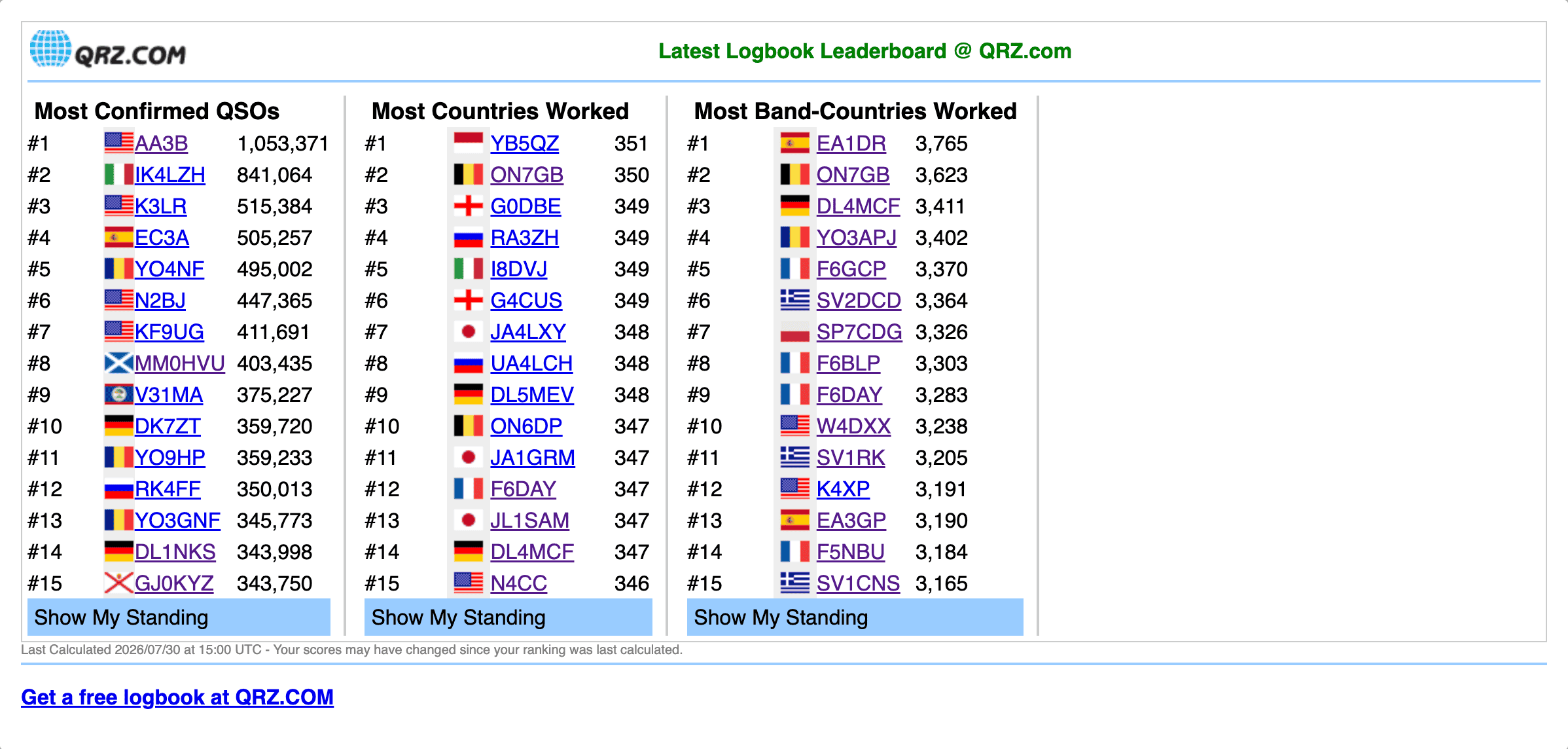
</blockquote>]]></content><author><name>EP2AES</name><email>EP2AES@asis.sh</email></author><category term="Guides" /><category term="macOS" /><category term="FX-4CR" /><category term="FT8" /><category term="WSJT-X" /><category term="Hamlib" /><category term="QRP" /><summary type="html"><![CDATA[A step-by-step blueprint for connecting the FX-4CR to Apple Silicon Macs, calibrating audio, configuring WSJT-X, and fixing Hamlib protocol errors.]]></summary><media:thumbnail xmlns:media="http://search.yahoo.com/mrss/" url="https://ep2aes.asis.sh/assets/images/i-love-ft8.jpg" /><media:content medium="image" url="https://ep2aes.asis.sh/assets/images/i-love-ft8.jpg" xmlns:media="http://search.yahoo.com/mrss/" /></entry><entry xml:lang="en"><title type="html">Real-Time QRZ Leaderboard Standings with qrz-rank.asis.sh</title><link href="https://ep2aes.asis.sh/log/2026/07/01/qrz-rank-lookup-tool/" rel="alternate" type="text/html" title="Real-Time QRZ Leaderboard Standings with qrz-rank.asis.sh" /><published>2026-07-01T12:00:00+03:30</published><updated>2026-07-01T12:00:00+03:30</updated><id>https://ep2aes.asis.sh/log/2026/07/01/qrz-rank-lookup-tool</id><content type="html" xml:base="https://ep2aes.asis.sh/log/2026/07/01/qrz-rank-lookup-tool/"><![CDATA[<p>Have you ever wondered where an operator stands on the global <strong>QRZ.com Logbook Leaderboard</strong> without manually scanning page after page?</p>

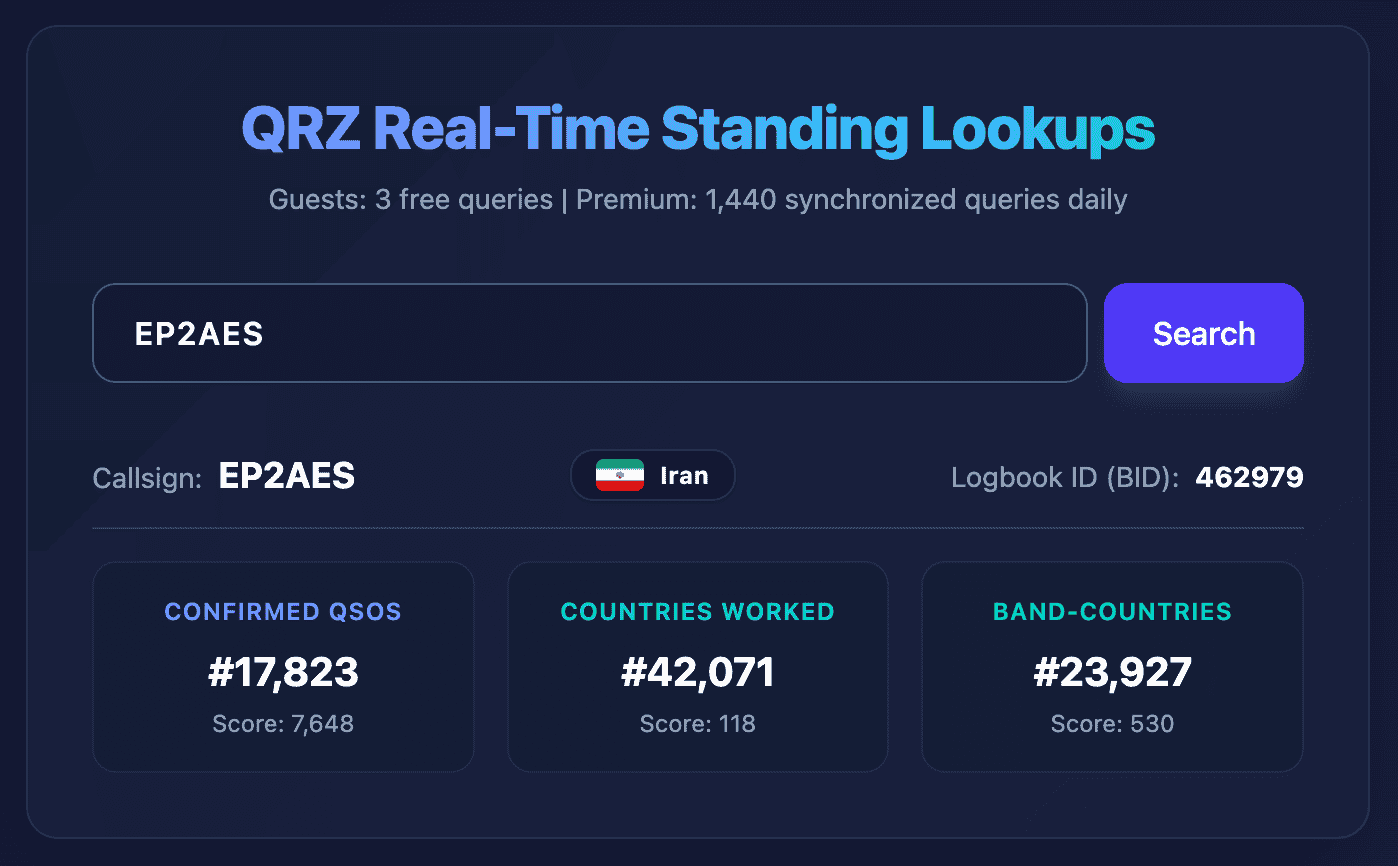
<p>While studying the leaderboard interface, I found that its ranking data could be retrieved dynamically with a specific internal Logbook ID (BID). That made a quick, real-time lookup tool possible.</p>

<figure>
  <img src="/assets/images/qrz-leaderboard-official.png" alt="The standard QRZ.com Logbook leaderboard interface" width="2396" height="1144" loading="lazy" />
  <figcaption>The standard leaderboard view is useful, but slow to scan for a particular callsign.</figcaption>
</figure>

<h2 id="one-callsign-three-standings">One callsign, three standings</h2>

<p>The lightweight app accepts a callsign and displays its exact position across three useful measures:</p>

<ul>
  <li><strong>Confirmed QSOs</strong></li>
  <li><strong>Countries worked</strong></li>
  <li><strong>Band-countries</strong></li>
</ul>

<figure>
  <img src="/assets/images/qrz-rank-app-screenshot.png" alt="Real-time QRZ standing lookup for EP2AES" width="1398" height="866" loading="lazy" />
  <figcaption>Real-time standing lookup for EP2AES.</figcaption>
</figure>

<p>The tool is still experimental, so it may contain bugs or unhandled edge cases. It is deployed publicly for testing and evaluation.</p>

<p><a href="https://qrz-rank.asis.sh" class="download-card download-card-orange">Try the QRZ Standing Lookup Tool</a></p>

<p>Feedback and bug reports are welcome at <a href="mailto:EP2AES@asis.sh?subject=QRZ%20Rank%20feedback">EP2AES@asis.sh</a>.</p>]]></content><author><name>EP2AES</name><email>EP2AES@asis.sh</email></author><category term="Web Tools" /><category term="QRZ" /><category term="QRZ" /><category term="logbook" /><category term="leaderboard" /><category term="web app" /><summary type="html"><![CDATA[A small, fast web tool that looks up a callsign’s live QRZ Logbook leaderboard position across confirmed QSOs, countries, and band-countries.]]></summary><media:thumbnail xmlns:media="http://search.yahoo.com/mrss/" url="https://ep2aes.asis.sh/assets/images/qrz-rank-app-screenshot.png" /><media:content medium="image" url="https://ep2aes.asis.sh/assets/images/qrz-rank-app-screenshot.png" xmlns:media="http://search.yahoo.com/mrss/" /></entry></feed>