
After seven long weeks of international transit, customs holding, and store cancellations, my Lab599 Discovery TX-500 finally landed on my operating desk.
Shipping from Russia to Iran during turbulent geopolitical times turned out to be an exercise in patience—four accessories were cancelled after placing the order due to sudden stock depletion. But once unboxed and held in hand, the engineering reality of this transceiver makes the entire detour worthwhile.
Carved from a solid monoblock of aircraft-grade anodized aluminum, sealed to IP65 weather-resistance standards, and equipped with a high-contrast transflective LCD showing a real-time 48 kHz panadapter, the TX-500 is arguably the most rugged, tactile, and aesthetically purposeful portable SDR ever created.
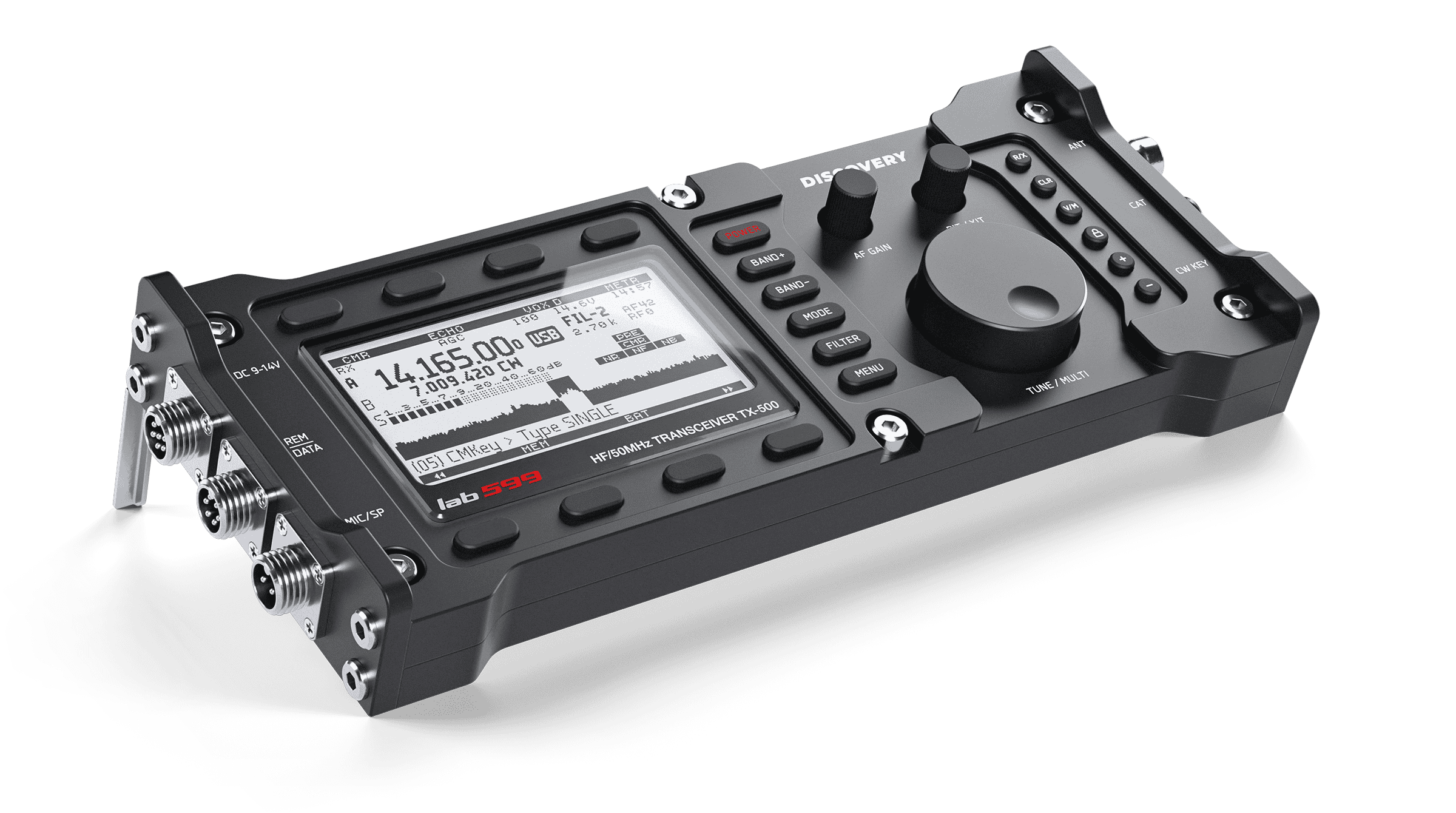
However, when you connect this minimalist expedition radio to modern Apple Silicon hardware running macOS Tahoe, you immediately face a familiar hurdle: official vendor software is distributed strictly for Windows and Linux, and operating FT8 requires precise soundcard gain staging that isn’t documented in the quick-start sheet.
To spare fellow Mac operators the frustration of audio clipping, 0-Watt transmission drops, and protocol mismatches, I have compiled this comprehensive blueprint alongside a full 14 MB downloadable engineering manual.
1. Mandatory Prerequisite: Firmware v1.30.00
Before touching any digital mode software, verify your radio’s MCU firmware version.
Operating on earlier releases (v1.1x or v1.2x) introduces severe bugs that will derail automated digital sequencing:
- The Catastrophic DIG-to-USB Mode Reset Bug: When WSJT-X sends certain CAT status queries, older firmware involuntarily jumps the transceiver from
DIGinto voiceUSBmode. Transmit audio routing from the rear data port is instantly severed, causing the radio to key up with 0.0 Watts RF output. - Phantom 100 Hz Frequency Shifts: Internal VFO rounding defects during high-rate Hamlib polling cause intermittent 100 Hz offsets that break FT8 tone decodes.
- Audio Codec Lockup: During rapid 15-second FT8 transmit/receive cycles, older DSP code can leave the audio codec in an attenuated state upon returning to RX.
- Digital Gain Scaling: Firmware v1.30.00 linearizes Menu 09 (
GAIN→DIG), providing predictable headroom without premature internal clipping.
Firmware Rule: Do not attempt FT8 troubleshooting on older firmware. Ensure your TX-500 is updated to Firmware v1.30.00 (
mtrx1.30.00.fw) using the native macOS updater before proceeding.
2. Hardware Cabling: The Field-Verified Setup
The TX-500 replaces fragile 3.5 mm jacks with waterproof, screw-locking GX12 aviation connectors. For my primary operating station running macOS on Apple Silicon, I use a clean two-cable setup:
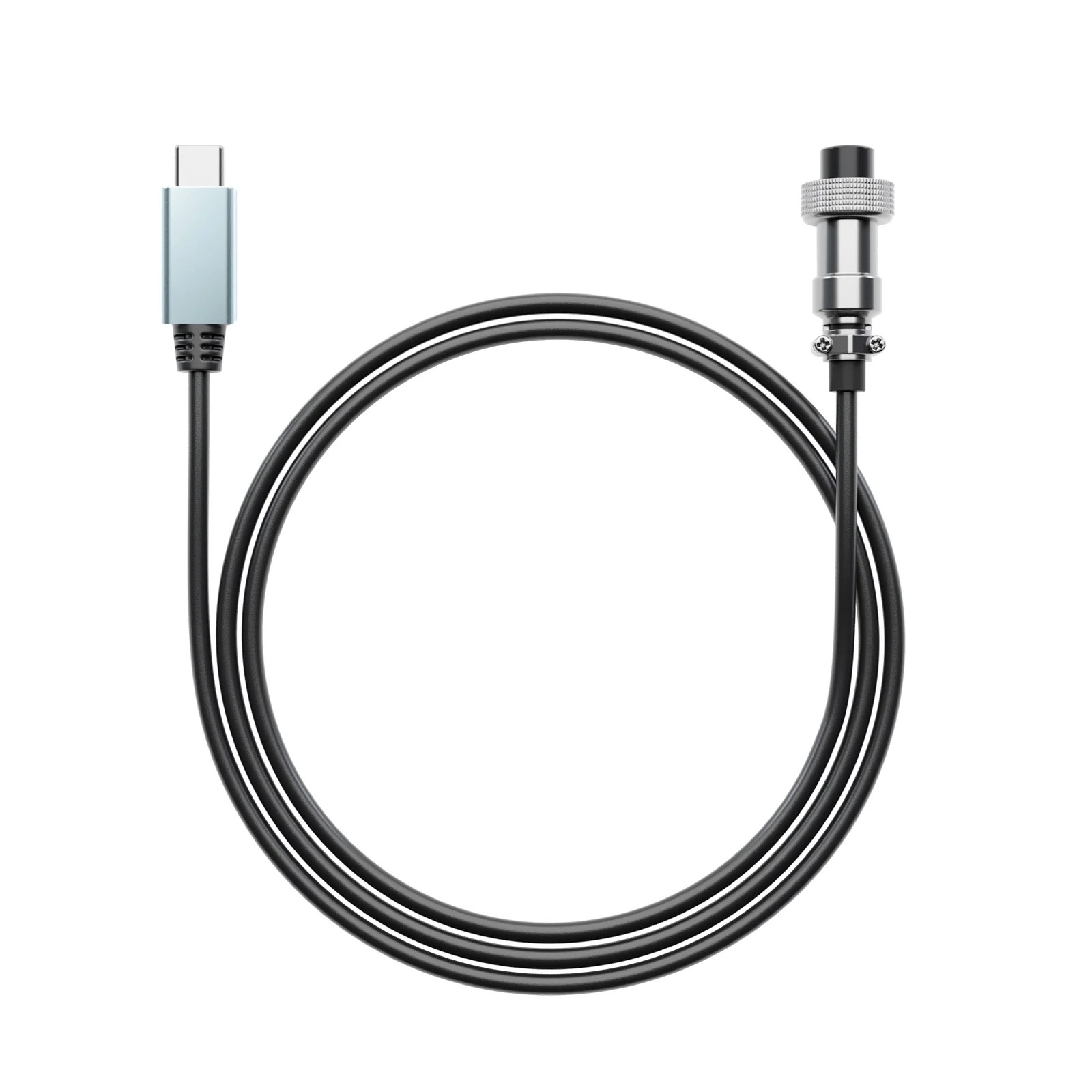
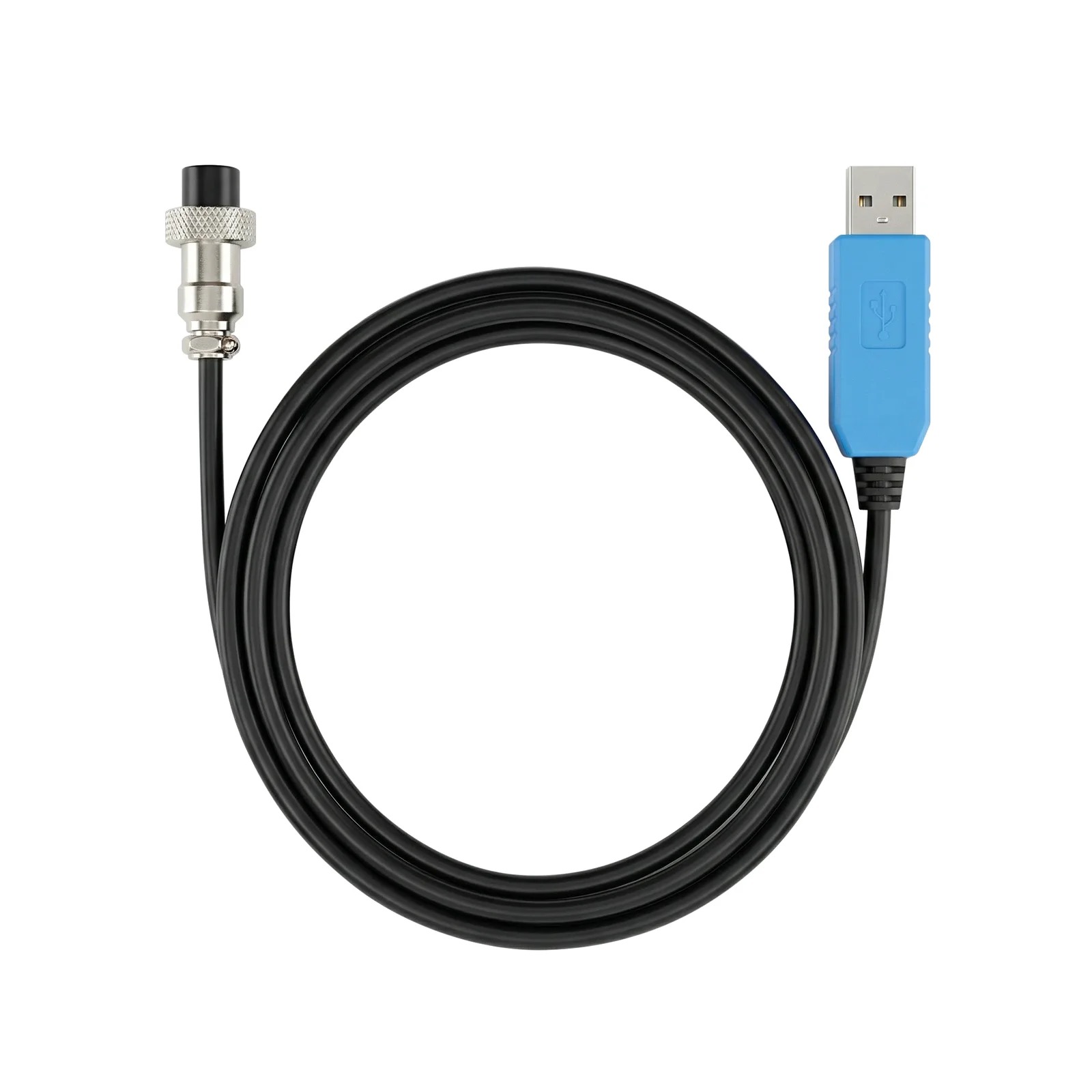
- Digital Audio Link (
REM/DATAPort → Mac USB-C):
The official Lab599 AD-508 USB-C Audio-Data Cable (7-pin GX12 to USB-C). It incorporates an integrated hardware USB DAC/ADC codec directly inside the overmolded plug. This eliminates external USB soundcards, ground-loop isolators, and analog patch cords. - Serial CAT Control (
CATPort → Mac USB):
The stock blue USB CAT adapter supplied in the TX-500 box (4-pin GX12 to USB-A with an internal FTDI bridge), connected via a standard USB-A to USB-C dongle or powered hub.
The Cable Ecosystem at a Glance
| Cable Model | Radio Port | Computer Interface | Description & Role |
|---|---|---|---|
| AD-508 | REM/DATA (7-pin) |
USB-C | Author’s Top Recommendation. Direct digital USB-C audio codec. |
| Stock Blue CAT | CAT (4-pin) |
USB-A | Included in radio box; reliable FTDI serial CAT control. |
| AD-502 | CAT (4-pin) |
USB-A | Black housing version of the stock CAT cable. |
| AD-514 | CAT (4-pin) |
USB-C | Direct USB-C CAT cable; avoids USB-A dongles. |
| AD-509 | REM/DATA (7-pin) |
USB-A | Digital audio cable with inline C-Media USB soundcard module. |
| AD-506 | REM/DATA (7-pin) |
Dual 3.5 mm TRS | Analog breakout; requires an external USB audio interface on Mac. |
3. Radio Menu Setup & Locking DIG Mode
Long-press the front-panel MENU button to configure these fundamental parameters:
- Menu 34 (
CAT PROTOCOL): Set toTS2000(Kenwood TS-2000 command set emulation). - Menu 35 (
CAT SPEED): Set to9600baud. - Menu 22 (
TX METR): Set toMIC(prepares the on-screen bar graph for digital drive calibration). - Menu 09 (
GAIN→DIG): Set initial value to20. - Menu 11 (
IF SHIFT): Set to0. - Menu 12 (
RF GAIN): Set to100%.
The Front-Panel Mode Secret: Cycle to DIG
A frequent stumbling block for newcomers is operating in SSB voice mode.
Repeatedly press the front-panel MODE button to cycle through the options:
\[\texttt{LSB} \longrightarrow \texttt{USB} \longrightarrow \texttt{CW} \longrightarrow \mathbf{\texttt{DIG}} \longrightarrow \texttt{AM} \longrightarrow \texttt{NFM}\]Stop when the top status bar on the LCD clearly reads DIG.
In DIG mode, the TX-500 mutes the front microphone, shuts off speech compression, and routes transmit modulation exclusively to the rear REM/DATA line-in. If the screen says USB, digital modulation will not reach the transmitter!
4. macOS Audio Calibration: The Two Golden Rules
Correct audio gain staging between macOS CoreAudio and the TX-500’s DSP codec is the single most critical factor in achieving clean FT8 signals. Open Applications → Utilities → Audio MIDI Setup and apply these two rules:
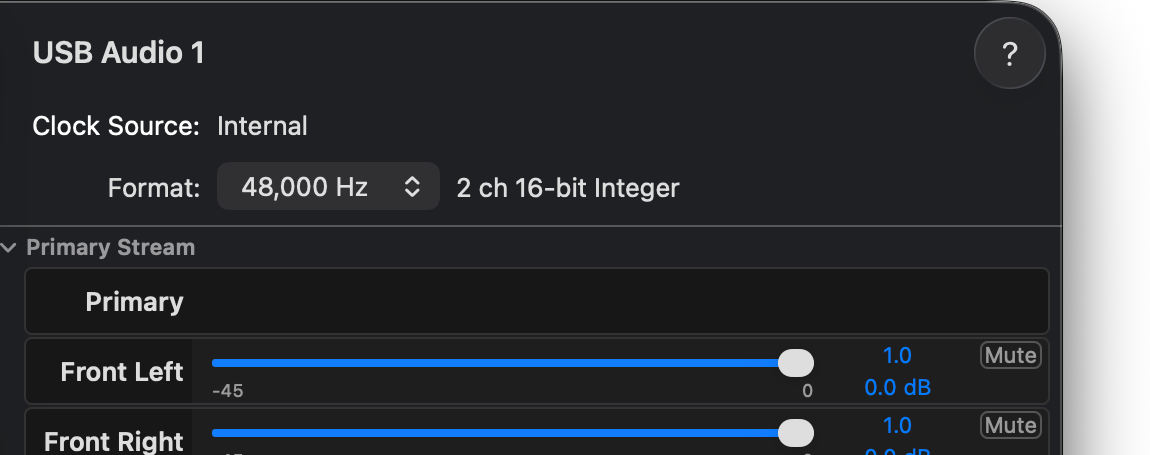
Rule 1: Output Volume MUST Be 100% (1.0 / 0.0 dB)
- The Symptom: WSJT-X asserts CAT PTT, the radio’s red TX LED lights up, relays click, but the inline wattmeter reads 0.0 Watts RF power.
- The Cause: Modulation in
DIGmode requires a line-level audio drive of at least $300\text{ mV RMS}$. At macOS’s default 50% slider, line voltage is too low to excite the balanced modulator. - The Solution: In Audio MIDI Setup, select the output device corresponding to your cable (e.g.,
USB Audio 1) and push the Output Volume to 100% (slider 1.0 / 0.0 dB).
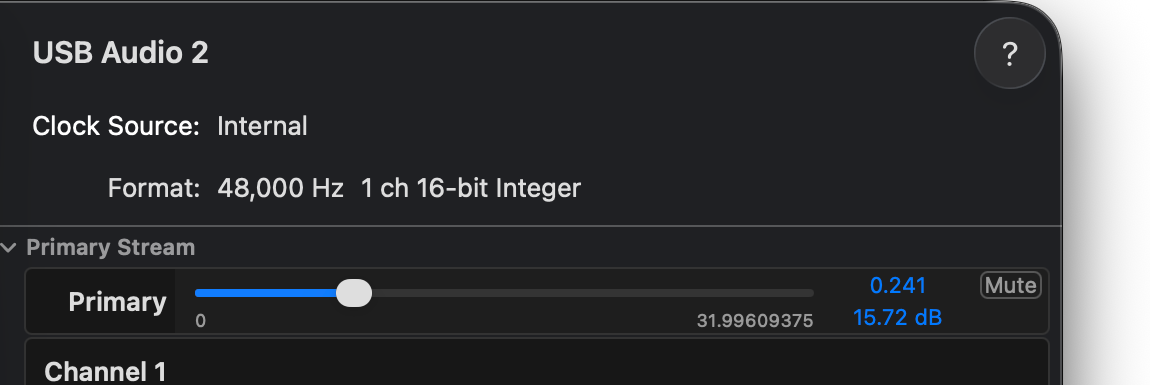
Rule 2: Input Volume MUST Be Set to ≤24% (Slider 0.241 / 15.72 dB)
- The Symptom: Upon launching WSJT-X, the vertical RX signal meter pegs at 85 dB and glows solid red, completely inhibiting FT8 decodes.
- The Cause: Severe soundcard ADC saturation (audio clipping). The input preamplifier is overloaded by the unattenuated line level from the radio.
- The Solution: Pull the Input Volume slider down to ≤24% (0.241). The macOS interface displays
15.72 dBhardware preamp gain (corresponding to $-12.36\text{ dBFS}$ digital headroom). This immediately drops the WSJT-X noise floor into the ideal 30–50 dB solid green decoding zone.
5. WSJT-X Configuration
With cabling and audio levels calibrated, configure WSJT-X (tested against v3.2.0 improved PLUS on macOS Tahoe):
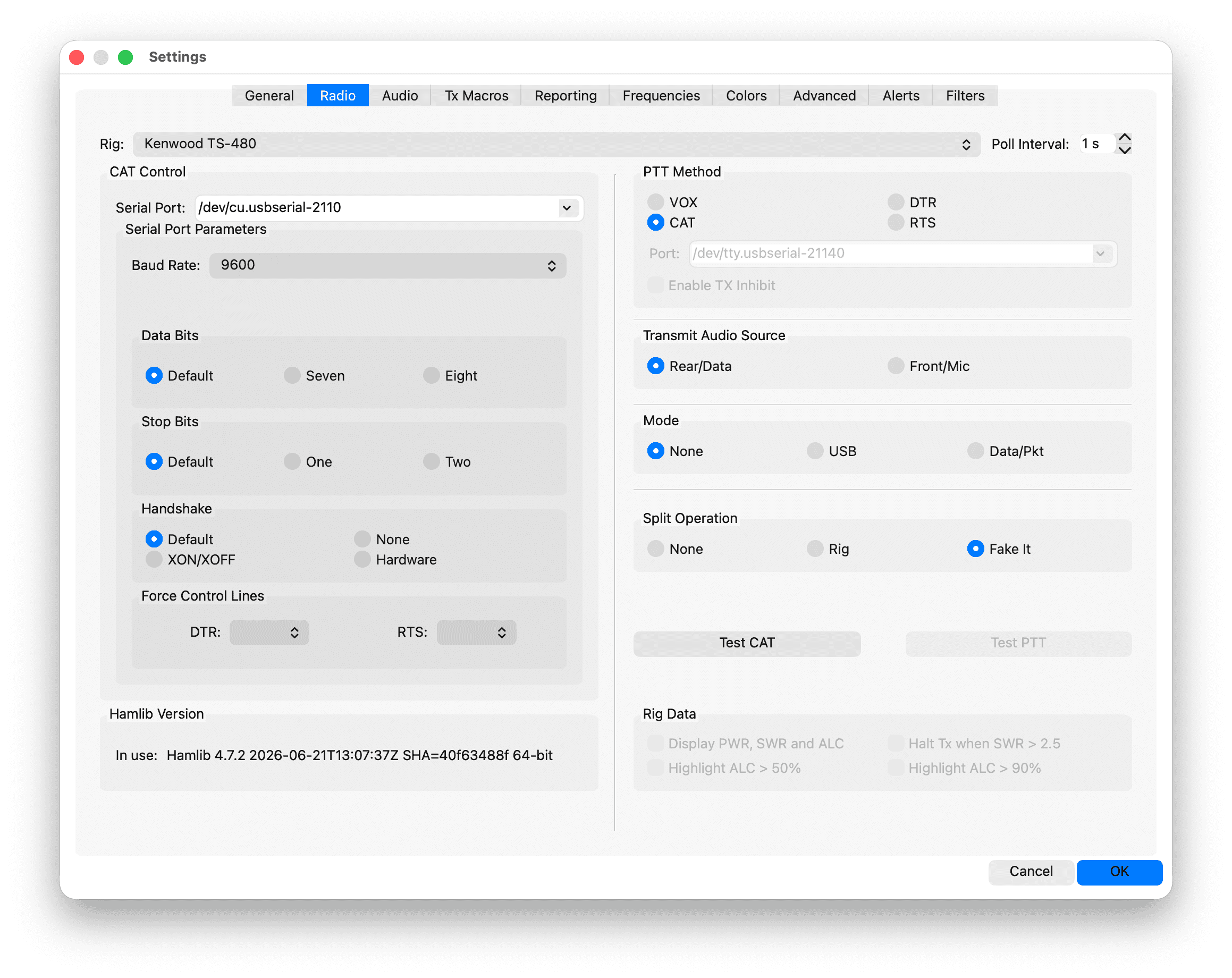
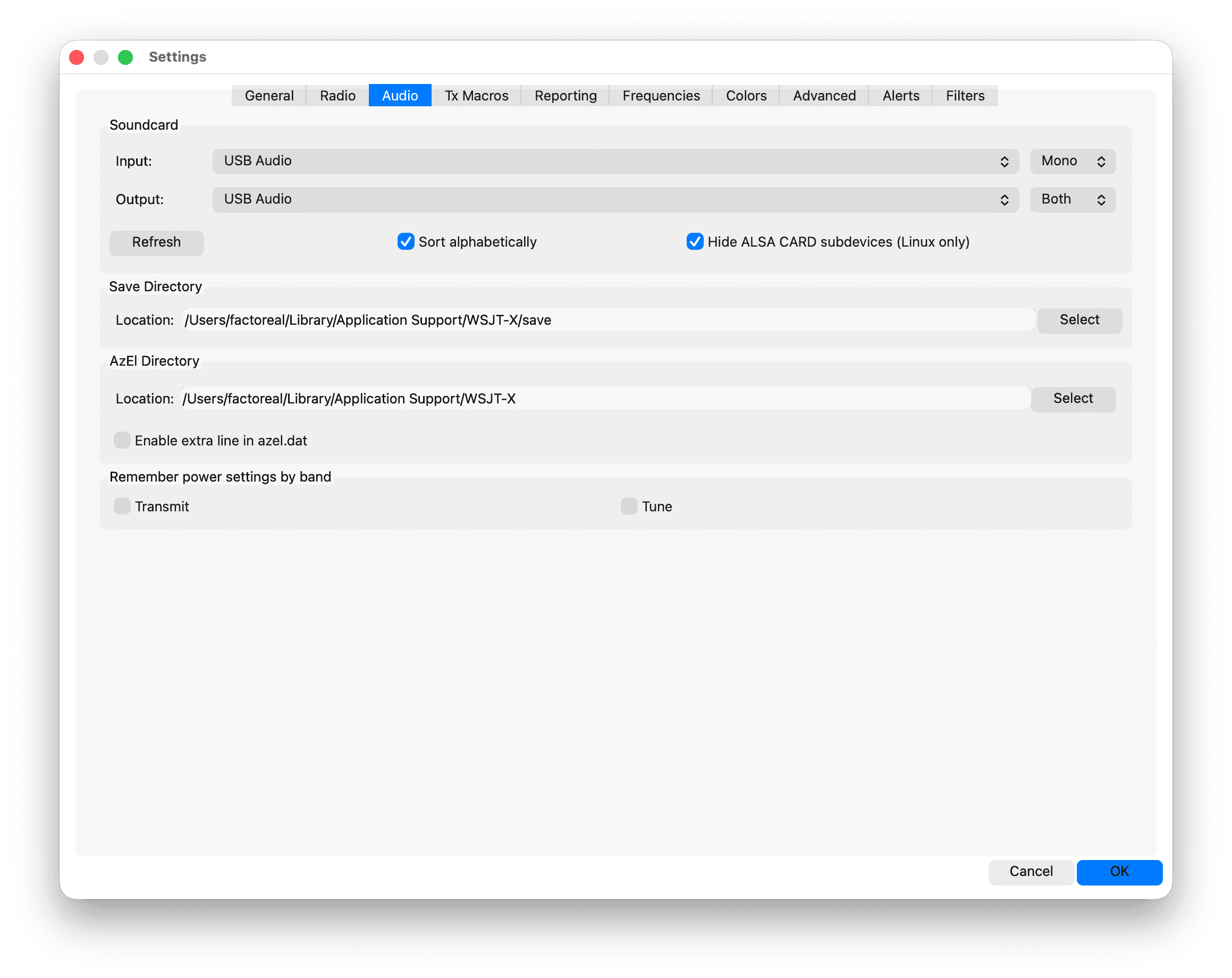
Settings → Radio (Critical Values)
- Rig:
Kenwood TS-480
(Mandatory. While the radio menu specifies TS2000, Hamlib’s TS-480 backend provides the most rock-solid polling and CAT PTT stability for the TX-500). - Serial Port:
/dev/cu.usbserial-XXXX - Baud Rate:
9600 - Data Bits / Stop Bits / Handshake:
8/Default/None - Transmit Audio Source:
Rear/Data - Mode:
None
(Crucial! Setting Mode toData/PktorUSBcauses WSJT-X to send automated mode commands that force the radio into SSB voice mode on PTT, dropping transmit power to zero. Setting Mode toNoneallows the radio to stay locked in front-panelDIGmode). - Split Operation:
Fake It - PTT Method:
CAT
Transmit Audio Calibration Protocol
Connect a matched 50 $\Omega$ dummy load, ensure Menu 22 (TX METR) is set to MIC, and click the Tune button in WSJT-X:
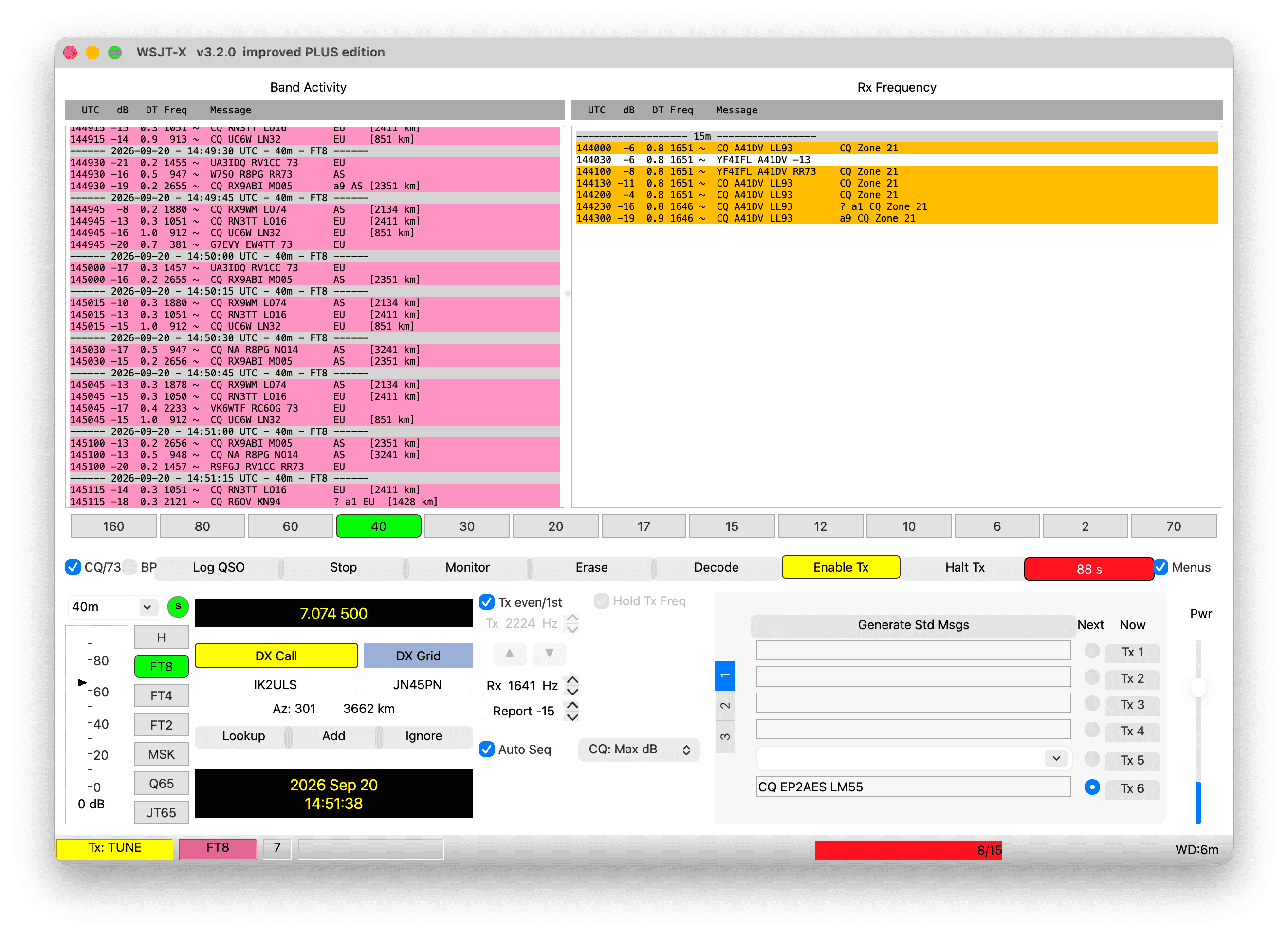
While transmitting the test tone, rotate the radio’s multi-function dial to adjust Menu 09 (GAIN → DIG) until all segments on the LCD indicator scale are completely filled. Official Lab599 documentation explicitly notes: “If the DIG level approaches maximum (50) but the scale is not filled, increase the audio output level on the PC”—confirming our 100% output rule!
6. Native Station & FT8 Studio: Lab599 Utility for macOS
While WSJT-X is the industry standard for digital operation, I wanted an elegant, self-contained native macOS solution. Over the past several weeks, I expanded the open-source Lab599 Utility (now at v2.243) into a complete station environment and native digital mode studio.
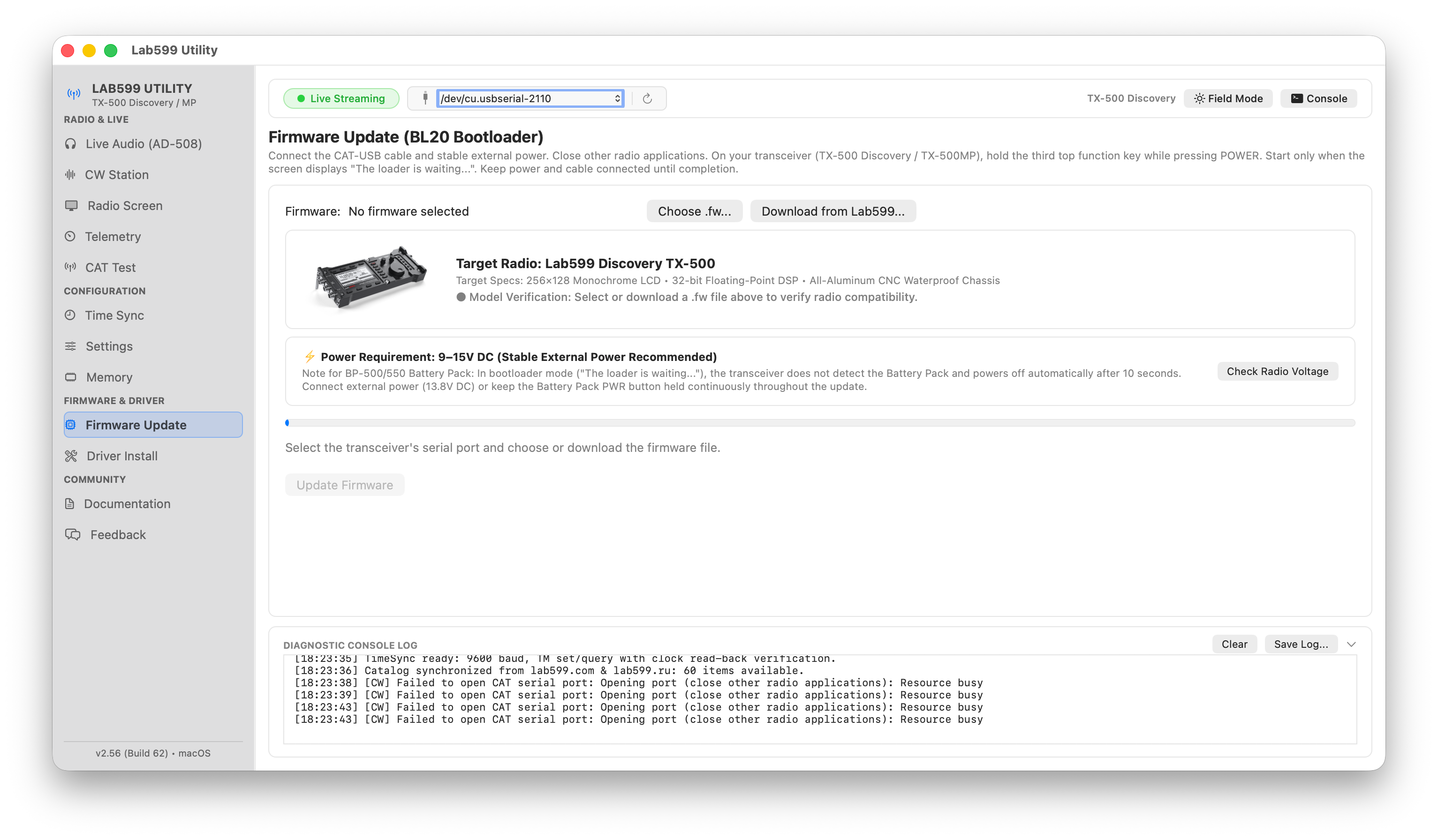
Station Management Capabilities
- Native Firmware Flashing: Flash official
.fwreleases at 57,600 baud with proper UART output queue drain pacing (TIOCOUTQ), completely bypassing Windows and Linux VMs. - Precision RTC Time Sync: Synchronizes the TX-500’s internal hardware clock to sub-second precision against Apple’s system time—indispensable for FT8 decoding during off-grid expeditions without internet.
- Live Telemetry & Diagnostics: Real-time monitoring of DC voltage, transmit current draw, internal PA temperature, forward power, and antenna SWR.
- Memory & Settings Backup: Full backup and restore of the radio’s configuration block and a complete 100-channel memory editor with CSV import/export.
- Driver & Security Fixer: One-click automated setup for FTDI D2XX drivers and macOS Gatekeeper authorization.
The Integrated FT8 / FT4 Digital Studio
Built directly into Lab599 Utility is a native FT8/FT4 Digital Studio that runs full digital cycles without opening WSJT-X:
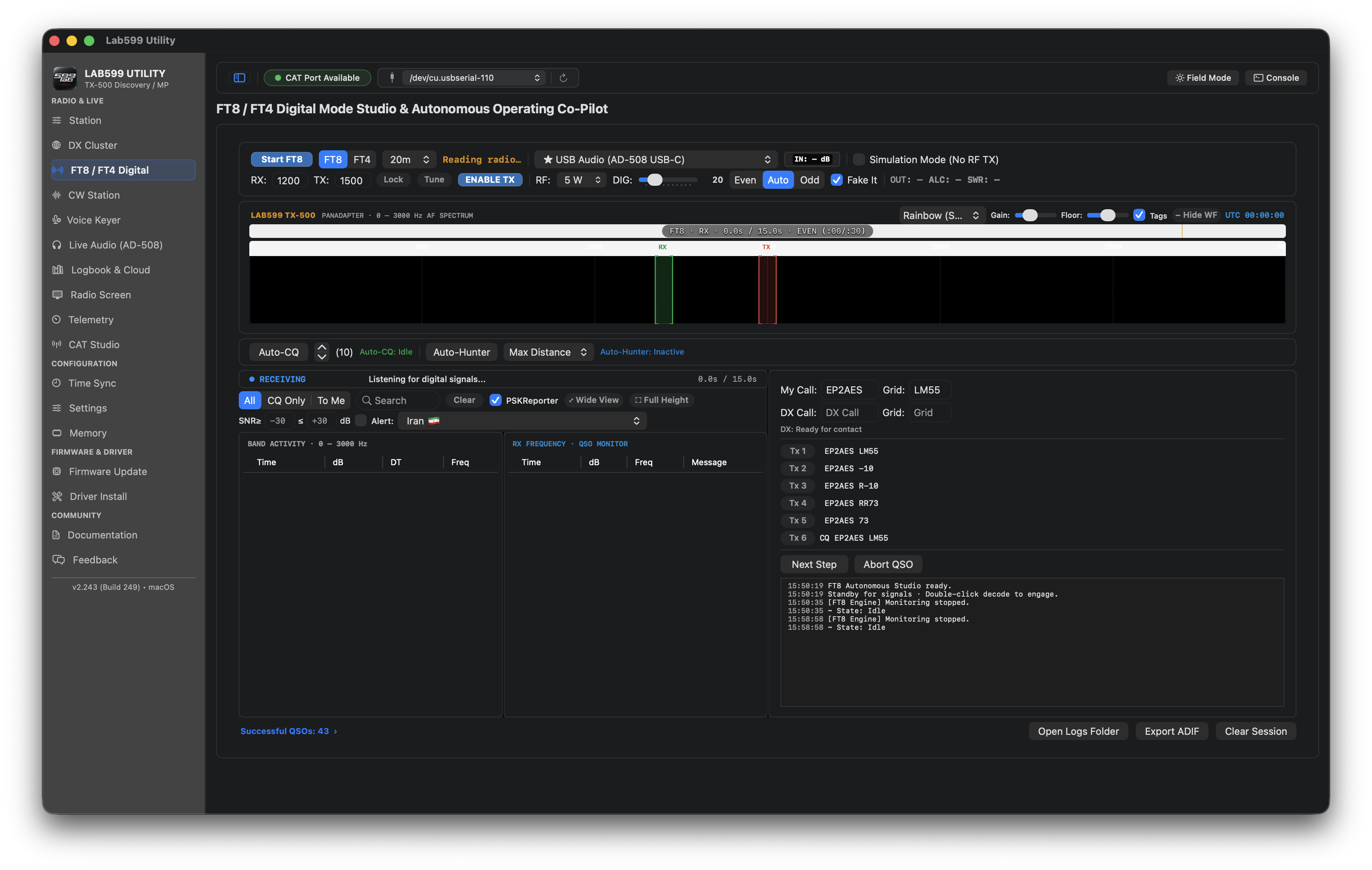
- Real-Time Waterfall & Decoder: Decodes FT8 and FT4 signals from the AD-508 audio feed, highlighting CQ calls and messages addressed directly to your callsign.
- CAT Sequencing: Automated transmit/receive sequencing with audio tone generation, band switching presets, and RF power/SWR telemetry.
- Contact Logging & ADIF Export: Automatic QSO logging with Maidenhead distance calculations and standard
.adilogbook exports. - Optional PSK Reporter: Direct spotted report submission to PSK Reporter when connected to the internet.
- Simulation Mode: Explore the interface, test CAT sequencing, and verify soundcard routing without radiating RF on the air.
You can inspect the code, download releases, and contribute on GitHub:
Lab599 Utility on GitHub: fact0real/Lab599-Utility
7. Thermal Management & Field Operating Tips
FT8 operates at an aggressive ~50% continuous transmit duty cycle (transmitting full power for 12.6 seconds out of every 15-second slot). At 10 Watts output, the TX-500 draws $1.8\text{–}2.2\text{ A}$ from 13.8 V, dissipating approximately 15 Watts of thermal energy.
Because the TX-500 has no noisy internal fan, the entire aluminum chassis acts as the heatsink. Under continuous FT8 calling:
- Chassis temperature can reach $55^\circ\text{C}$ within 15–20 minutes.
- At $65^\circ\text{C}$, internal thermal protection kicks in, automatically throttling RF output power.
Field-Tested Cooling Solutions
- Fixed/Shack Station (External Fan): Position a small 5 V USB or 12 V brushless fan ($60\text{ mm}$ or $80\text{ mm}$) blowing across the rear heatsink ribs. Forced airflow reduces equilibrium temperatures by $15\text{–}20^\circ\text{C}$, enabling non-stop 10 W digital duty.
- Ultralight Portable (Gel Ice-Pack): For SOTA/POTA deployments, place a sealed gel ice-pack wrapped in a thin microfiber cloth directly beneath the radio’s flat aluminum base. The TX-500’s IP65-sealed chassis prevents moisture penetration while keeping the radio under $35^\circ\text{C}$ through intense pileups.
- RF Immunity: Snap Type-43 ferrite chokes on both ends of the CAT and audio cables, deploy a 1:1 current balun at the antenna feedpoint, and run your MacBook on internal battery power to eliminate ground loop hum.
8. Download the Complete Engineering Manual (PDF)
For bench reference, field use, and detailed troubleshooting tables, the complete 28-page technical guide is typeset in LaTeX with full schematics, decibel reconciliation formulas, and step-by-step checklists:
Download the Lab599 TX-500 macOS FT8 Guide (v1.1 PDF)
Conclusion & Feedback
Pairing the Lab599 Discovery TX-500 with Apple Silicon on macOS delivers an exceptional, expedition-grade digital station. Whether you choose the battle-tested WSJT-X pipeline or the native Lab599 Utility FT8 Studio, following the calibrated audio rules and maintaining firmware v1.30.00 guarantees rock-solid contacts from anywhere on the globe.
If you test this setup, encounter unique edge cases, or have suggestions for the next release of Lab599 Utility, feel free to open an issue on GitHub or reach out via [email protected].
73 de EP2AES
AFTER THE BEEP
Continue the conversation
Comments are kept intentionally quiet for now. Questions, corrections, and signal reports are welcome by email.
Reply by email